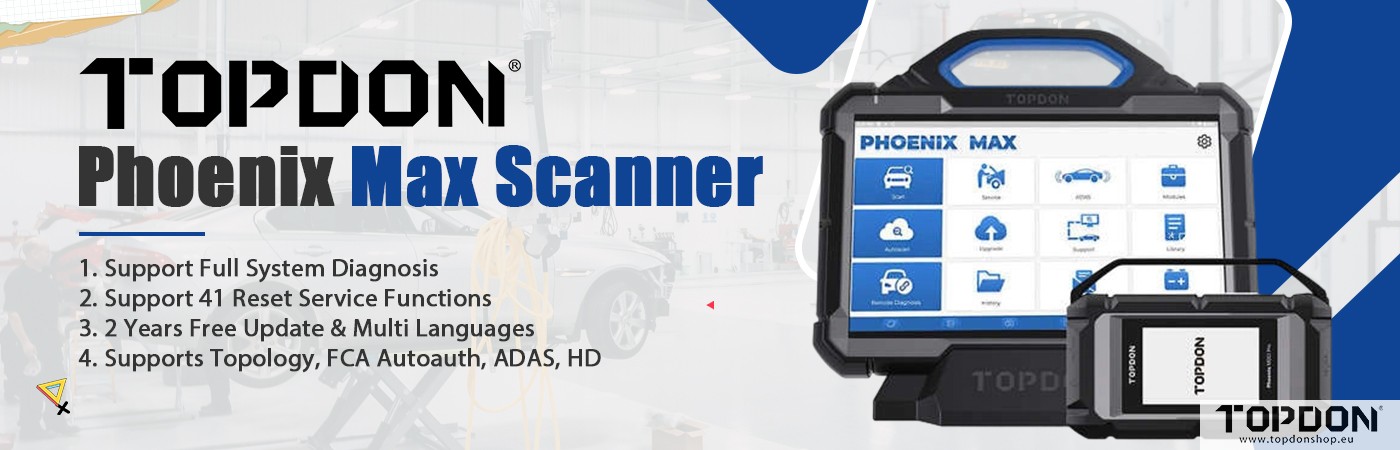
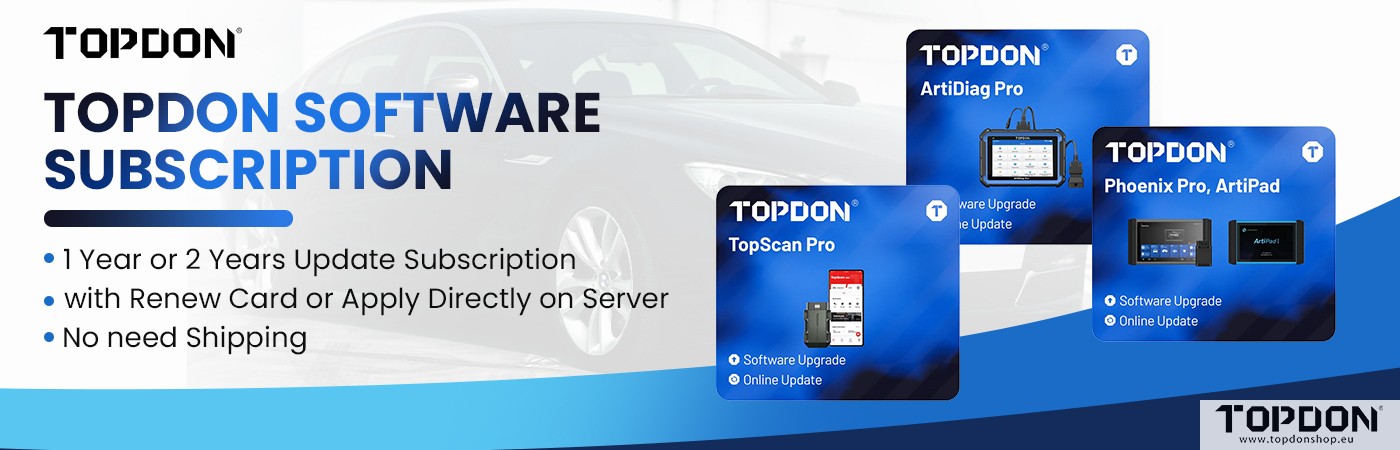

To activate Heavy Duty (HD) software on a Topdon Phoenix (Phoenix Smart, Phoenix Remote, Phoenix Max, Phoenix Xlink), you need a subscription, which can be purchased from topdonsho.eu.
The standard HD software package comes with the essential 6-pin and 9-pin OBD connectors, which cover the vast majority of applications.
The activation is performed by navigating to the “Update” section, selecting “Renewals,” and entering the password provided on the update card. The new software allows access to heavy-duty trucks, buses, and machinery.
Steps to Activate Heavy Duty Software:
1. Purchase the HD Software Package: Purchase the 1-Year HD Software Update Add-on from topdonshop.eu.
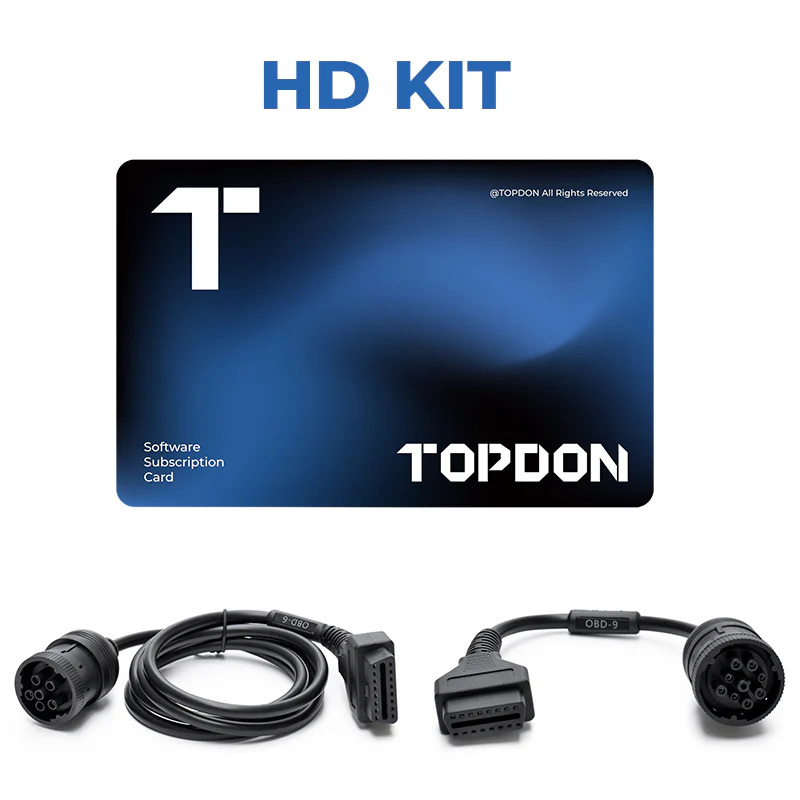
2. Locate Activation Details: Retrieve the password from the scratch-off area of the update card.
3. Navigate to Updates: On your Topdon Phoenix Max/Smart/Remote/XLink screen, go to the “Update” section.
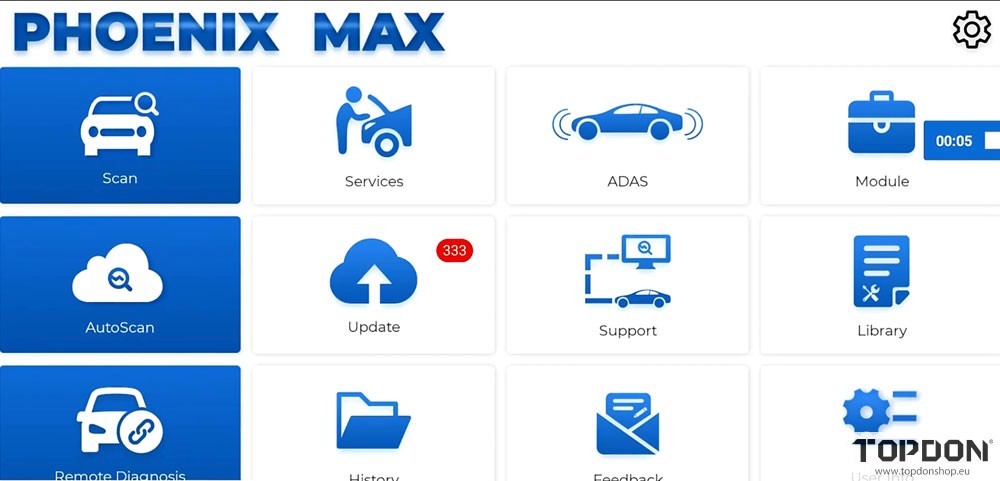
4. Enter Renewal Code: Click on the “Renewals” option in the lower right corner, and enter the password from the card.
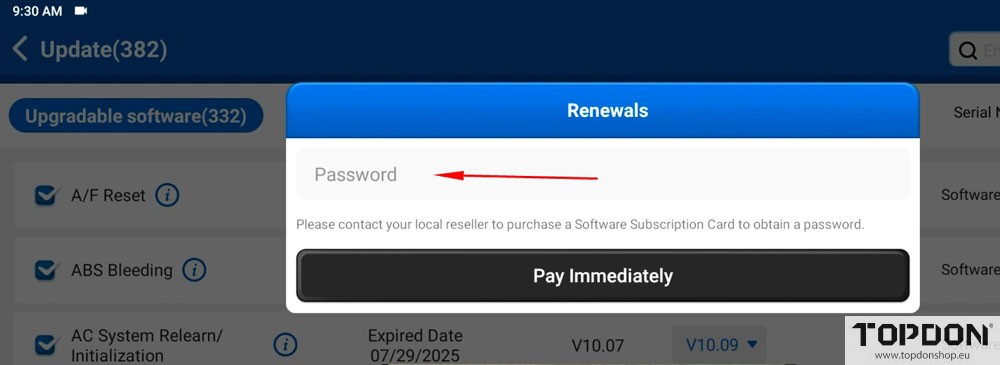
5. Confirm Activation: Upon success, the heavy-duty software modules will unlock, allowing access to the “Heavy Duty” tab.
6. Update Software: Ensure the tablet is connected to Wi-Fi and download the necessary HD vehicle modules.
7. Connect Hardware: For diagnostics, ensure you are using the correct VCI and, if needed, the 9-pin/6-pin cable connector for heavy-duty trucks.
Key Considerations:
- Compatible Devices: The HD software is available for Phoenix Max, Smart, Remote, and XLink.
- Activation Time: Online updates can take up to 3 business days to apply to your tool.
- VCI Update: Use the Settings menu to ensure the VCI/MDCI dongle is updated and paired, ideally using a USB cable for stable connection during diagnostic updates.