

How to activate, connect and update Topdon ONE Series Scanners?
I. Basic Setup
Press and hold the power button for 3s to turn on the tablet. Follow the steps below to configure basic settings.
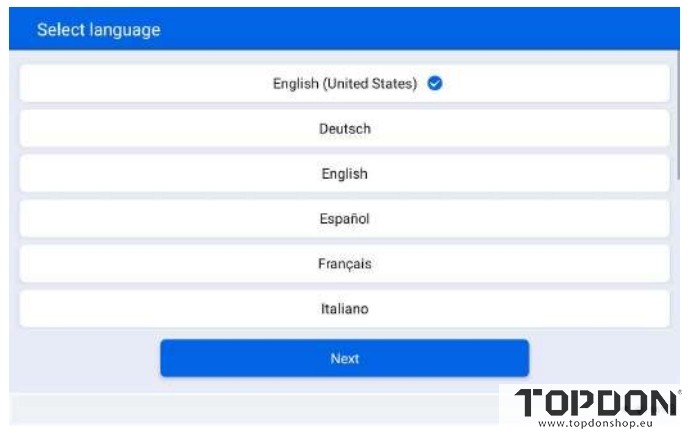
1. Select a desired language.
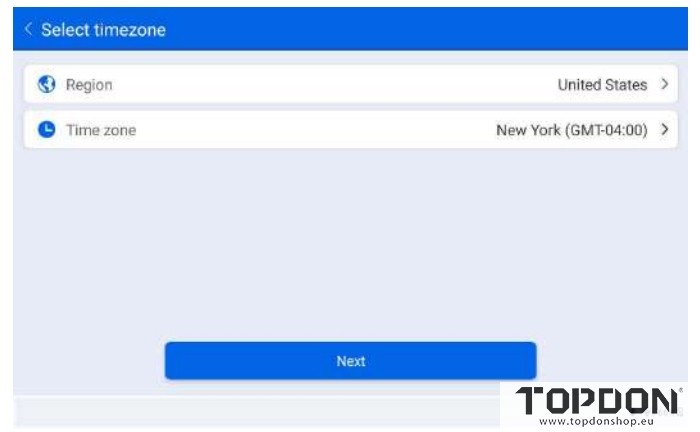
2. Choose the appropriate region and time zone.
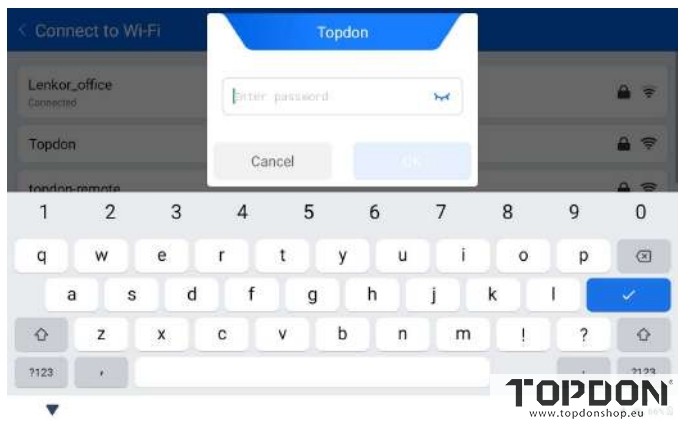
3. Select a WiFi from the scanned list and enter the password.
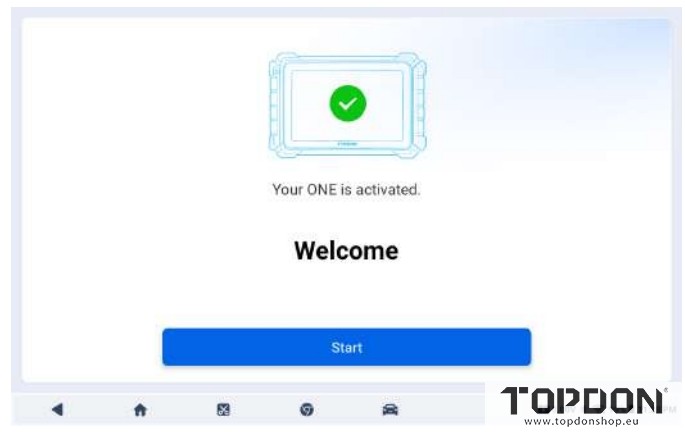
4. The tablet is activated successfully. Tap Start to begin using it.
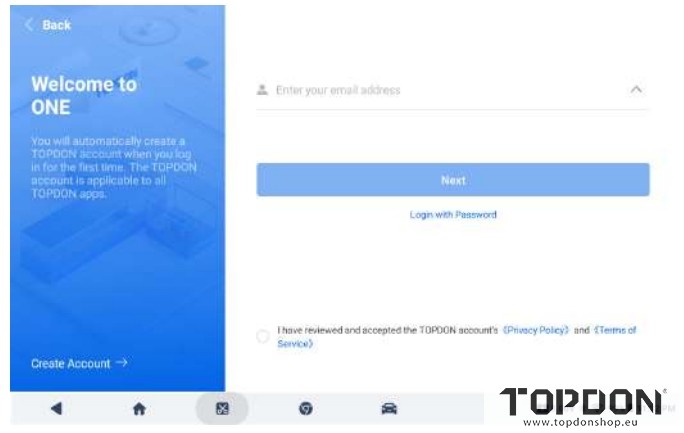
5. Log in to your TOPDON account.
If you do not have an account, tap Create Account to register a new account.
II. Connect the ONE VCI to the Tablet (Bind VCI to the Tablet)
To enable communication between the tablet and the vehicle, the ONE VCI and the tablet must be connected first.
The connection can be established via wireless (Bluetooth or WiFi) or wired (USB cable) solutions.
Wireless VCI Connection.
Two wireless methods are provided to connect the ONE VCI to the table: Bluetooth and Wi-Fi.
Method 1: Wi-Fi Connection.
Before establishing a WiFi connection between the tablet and the VCI, ensure that the HOST mode is enabled under User Info- Settings- USB Mode Switch.
1). Go to User Info- VCI Management. Tap the + icon in the upper right corner of the screen.
2). Tap Connect Now or the VCI icon in the top right corner of the screen.
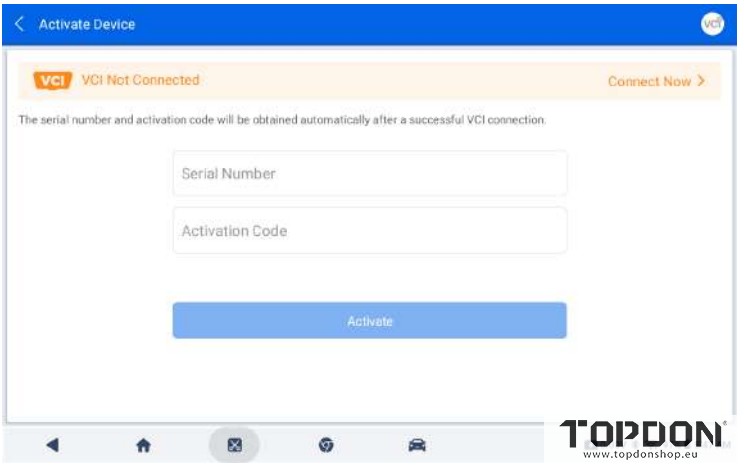
3). Tap the desired VCI name from the WiFi list.
Note: You can identify the VCI by the last four digits of its serial number.
4). Once the wireless connection is established, the connection indicator on the VCI illuminates solid blue, and the icon (VCI) appears in the top right corner of the screen.
Note: To terminate the Wi-Fi connection, tap the VCI name from the list again.
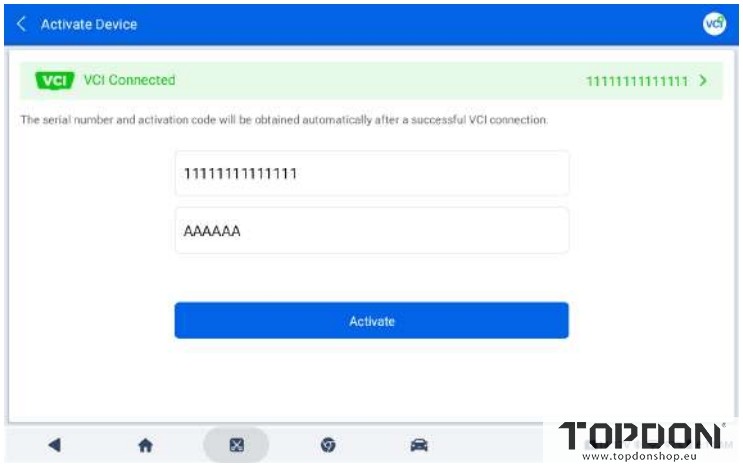
5). After the VCI serial number and activation code are automatically retrieved, tap Activate to bind the VCI to the tablet.
Method 2: Bluetooth Connection
1). Go to User Info > VCI Management. Tap the icon in the top right corner of the screen.
2). Tap Connect Now or the icon in the top right corner of the screen.
3). Tap the desired VCI name from the Bluetooth list.
4). Once the wireless connection is established, the connection indicator on the VCI illuminates solid blue, and the icon appears in the top right corner of the screen.
Note: To disconnect, tap the VCI name from the list again.
5). After the VCI serial number and activation code are automatically retrieved, tap Activate to bind the VCI to the tablet.
Wired VCI Connection
The wired connection is established via a USB cable linking the VCI and the tablet.
Note: Before establishing a wired connection between the tablet and the VCI, ensure that the HOST mode is enabled under User Info > Settings > USB Mode Switch.
1. Go to User Info > VCI Management. Tap the icon in the top right corner of the screen.
2. Use the USB cable (USB-A to USB-C) to connect the VCI and the tablet.
3. Once the wired connection is established, the connection indicator on the VCI illuminates solid blue, and the icon appears in the upper-right corner on the screen.
4. After the VCI serial number and activation code are automatically retrieved, tap Activate to bind the VCI to the tablet.
Tips:
To switch to another VCI, tap the VCI icon in the upper-right corner of the screen and select the desired device from the list. The system will complete the switch automatically.
Update Topdon ONE Lite/Topdon ONE
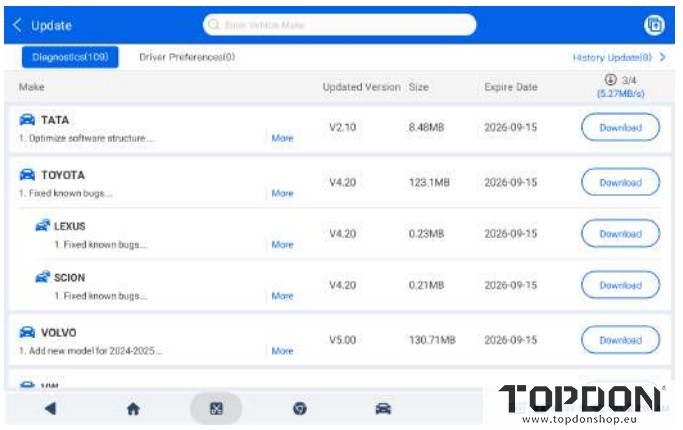
This function allows you to update the app and vehicle-specific software whenever new versions are available.
To Update the app or software
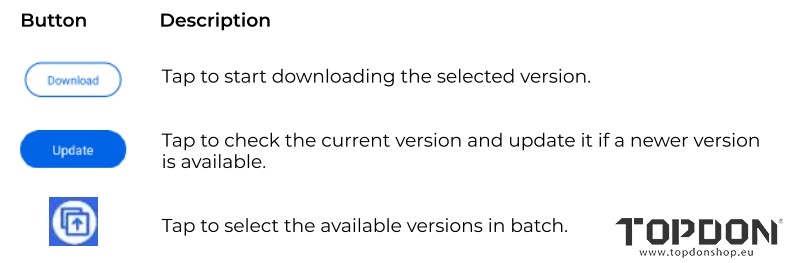
1.Tap Update- Diagnostics or Driver Preferences
2.Tap the buttons to perform corresponding functions.