

How to Fix the firmware for Topdon ArtiDiag800 BT/AD800BT2 /AD900 Lite/AD900 BT etc Artidiag series diagnostic scanners?
Takes AD800 BT as an example.
When do i need to fix the firmware?
1.The scanner cannot connect to the VCI dongle.
2. The scanner cannot connect to the vehicle normally.
3. VCI connector fault light is always on.
4. Any problems related to the Bluetooth connection.
How to Update the Firmware?
1. Connect to a stable WiFi.
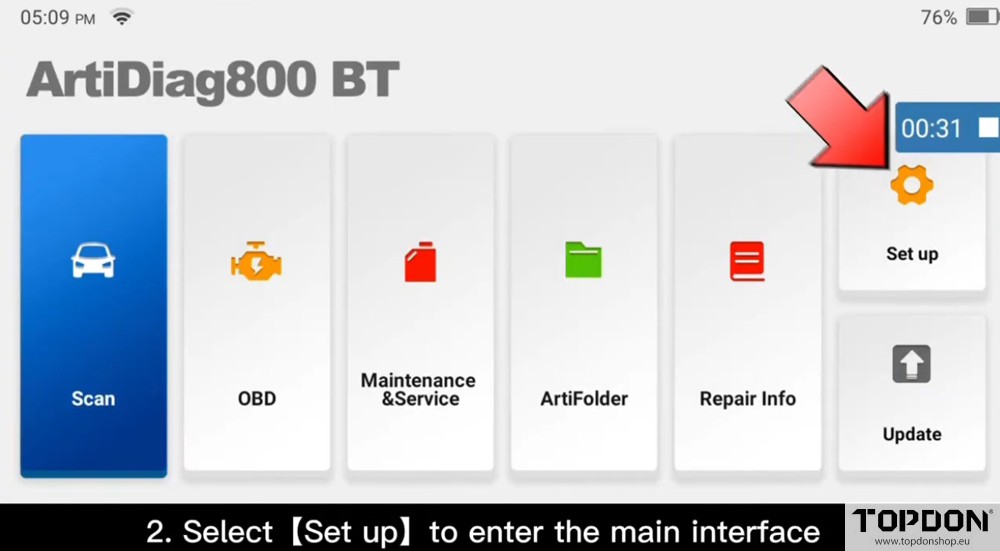
2. Select “Set up” to enter the main interface.
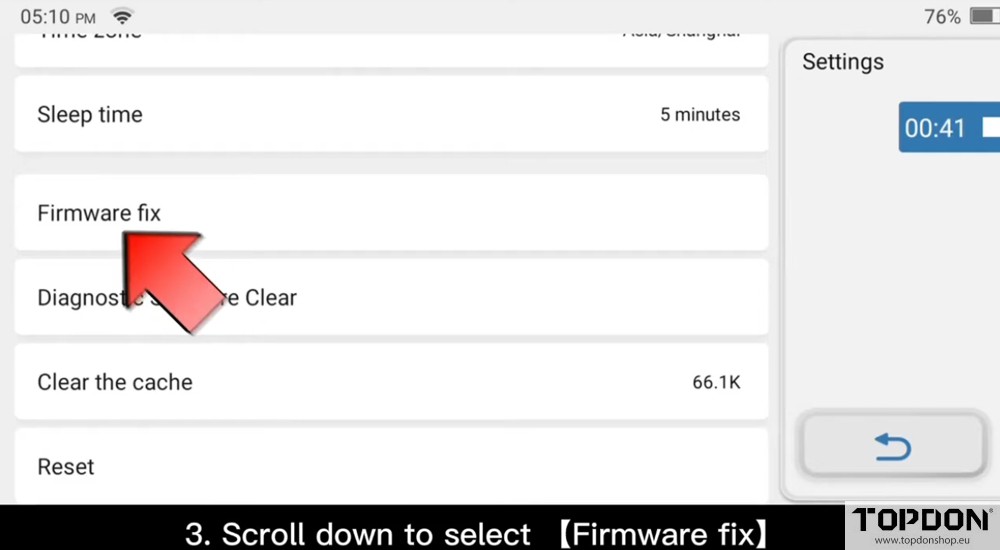
3. Scroll down to select “Firmware Fix”
4. Connect the VCI to the OBDII socket as the scanner prompts.
5. Select “Firmware Fix” to complete the Fix.
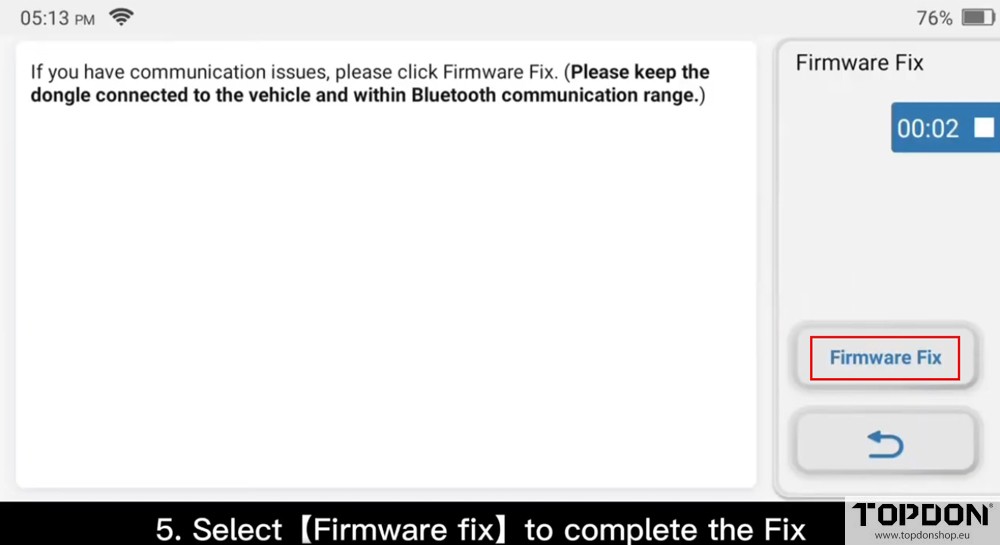
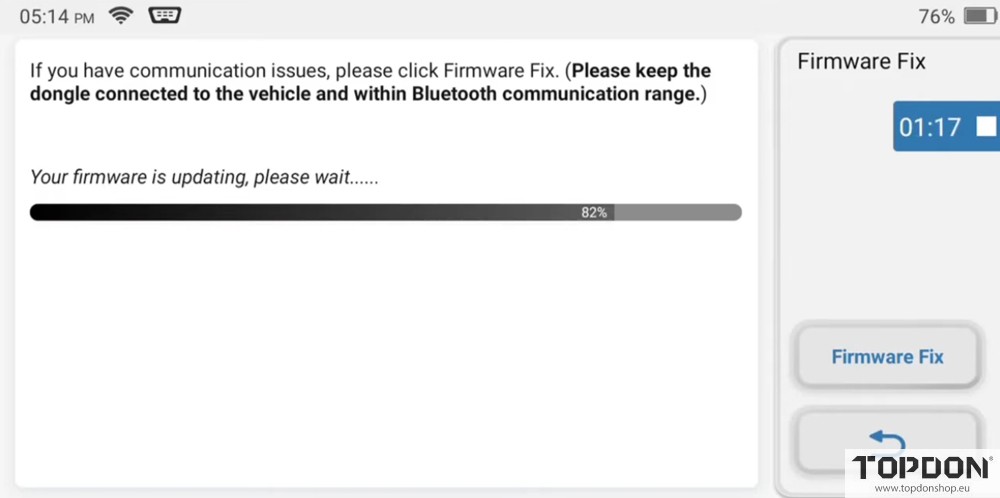
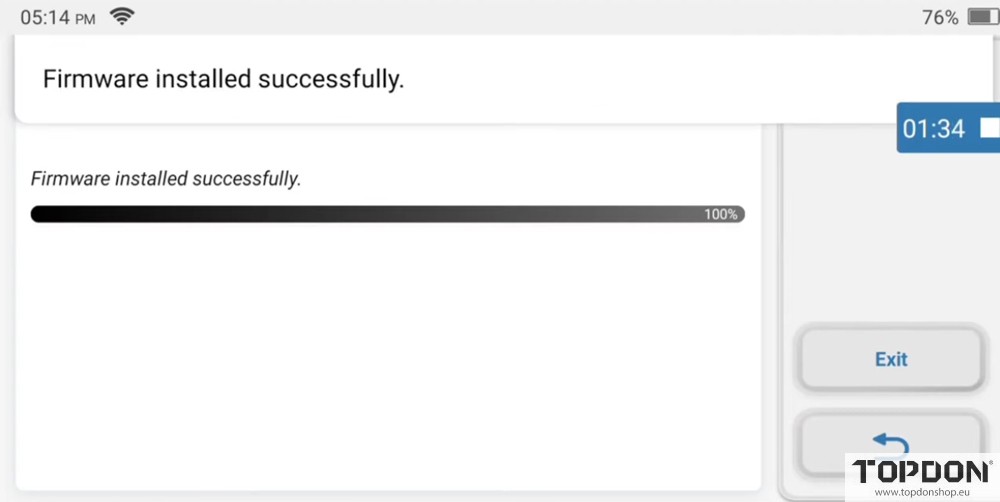
After the Fix is completed, disconnect the VCI connection and wait for more than 5 seconds before the next scanning.
Note: Please update the model, APP version to date, ensure the vehicle OBD II socket wiring is in good condition. After the above operations still failed to communicate with the vehicle, please contact TOPDON technical support team (support@topdon.com), thank you.