

Problem:
After I updated the Topdon Artidiag 800 BT scanner, VCI stopped working, blue light and then green light on which shows it reads, but then I get an error message, failed to get VCI information.
How to fix it?
Solution:
If the AD800 BT/BT2 scanner cannot connect to the VCI dongle or does not connect to vehicle, do a Firmware Fix first.
Topdon AD800 BT/BT2 Firmware Fix Guide:
1. Connect to a stable WiFi.
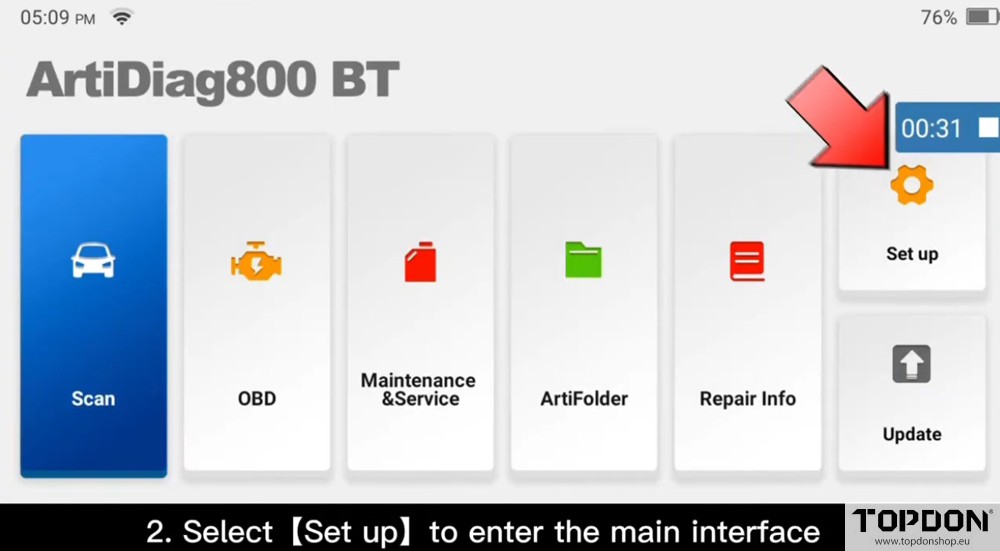
2. Select “Set up” to enter the main interface.
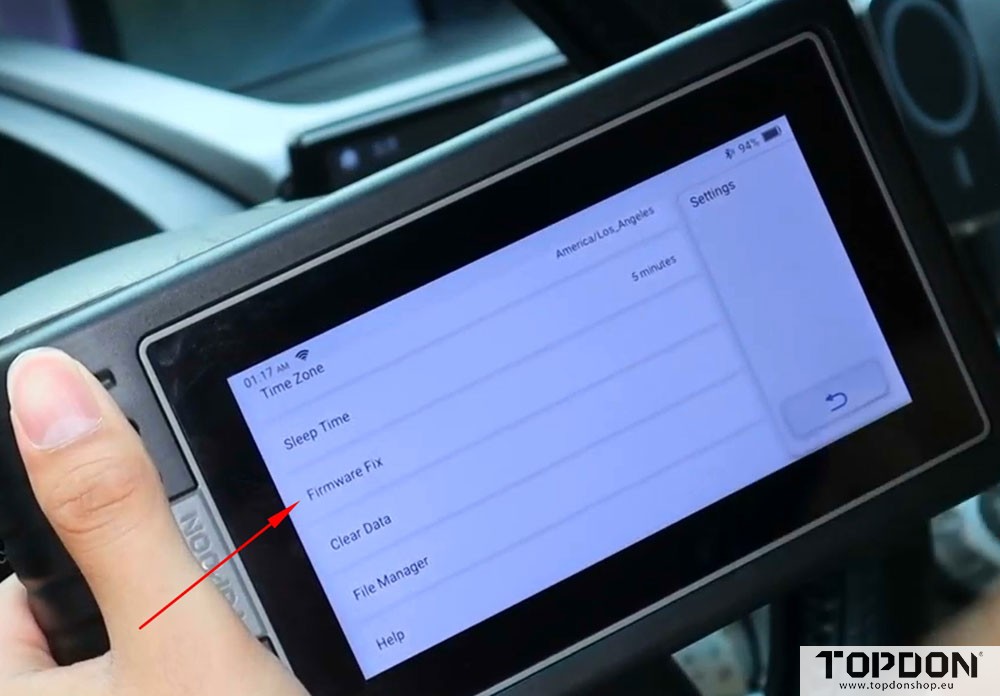
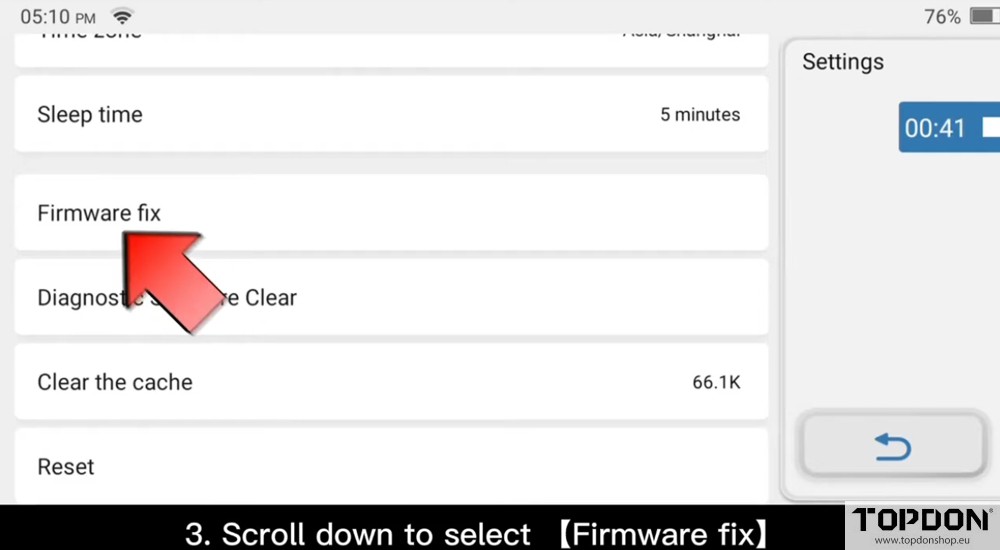
3. Scroll down to select “Firmware Fix”
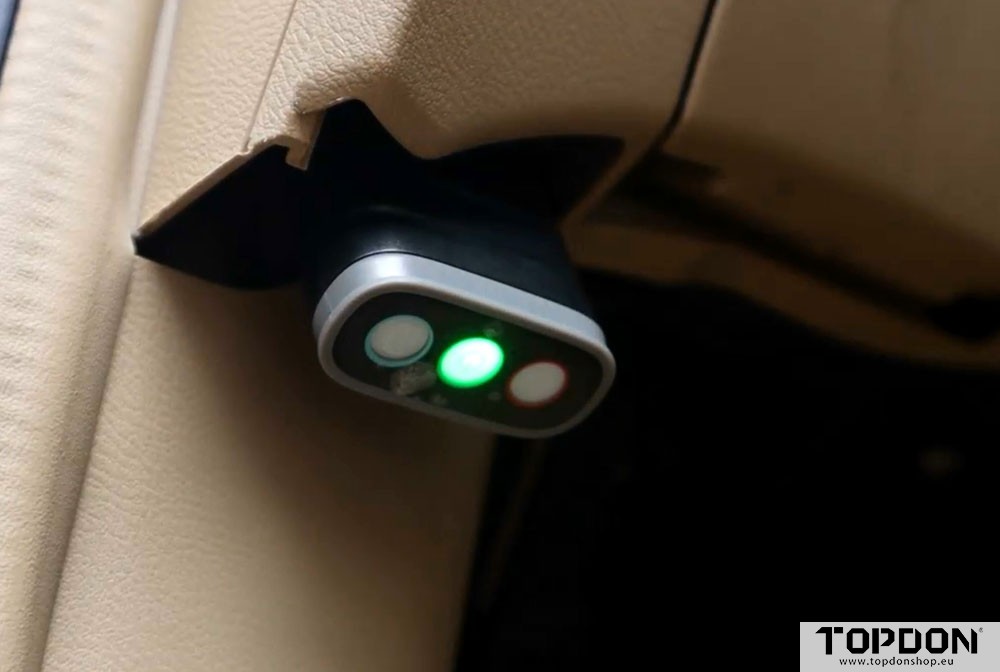
4. Connect the VCI to the OBDII socket as the scanner prompts.
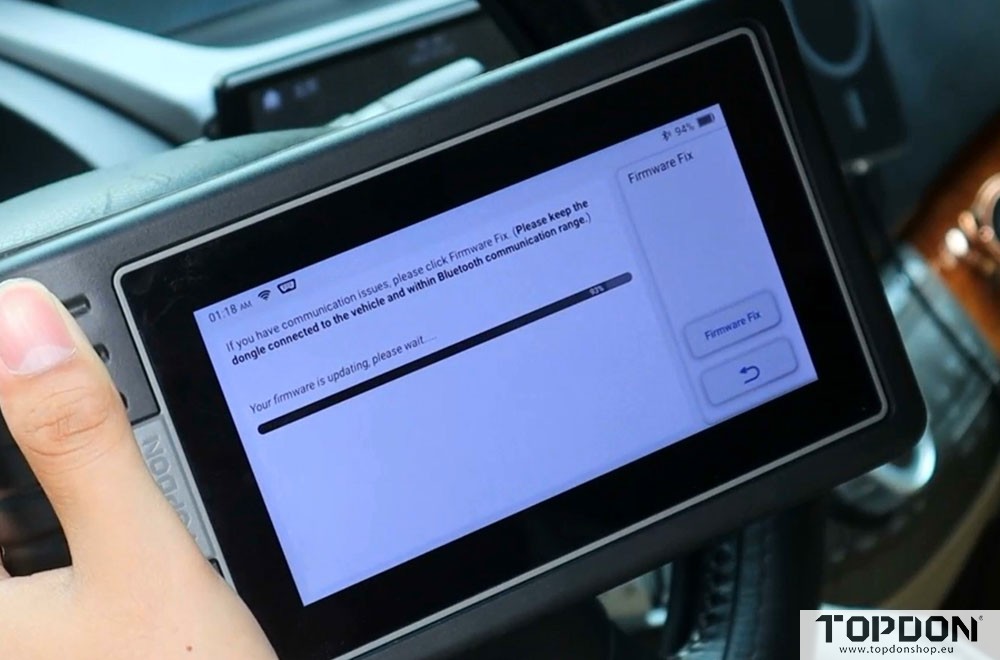
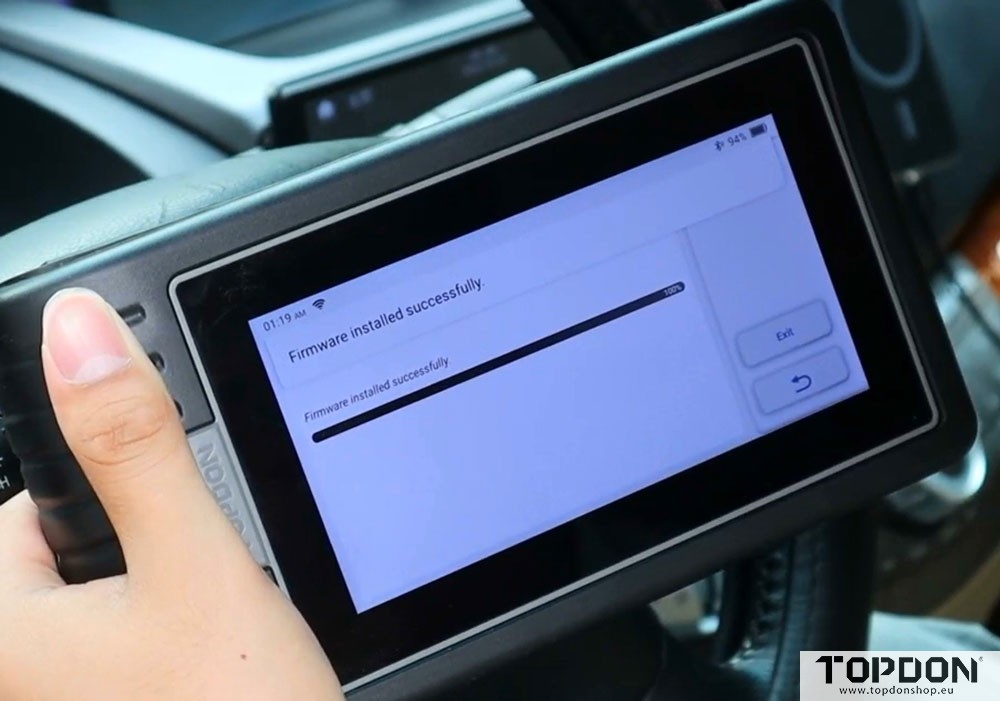
5. Select “Firmware Fix” to complete the Fix.
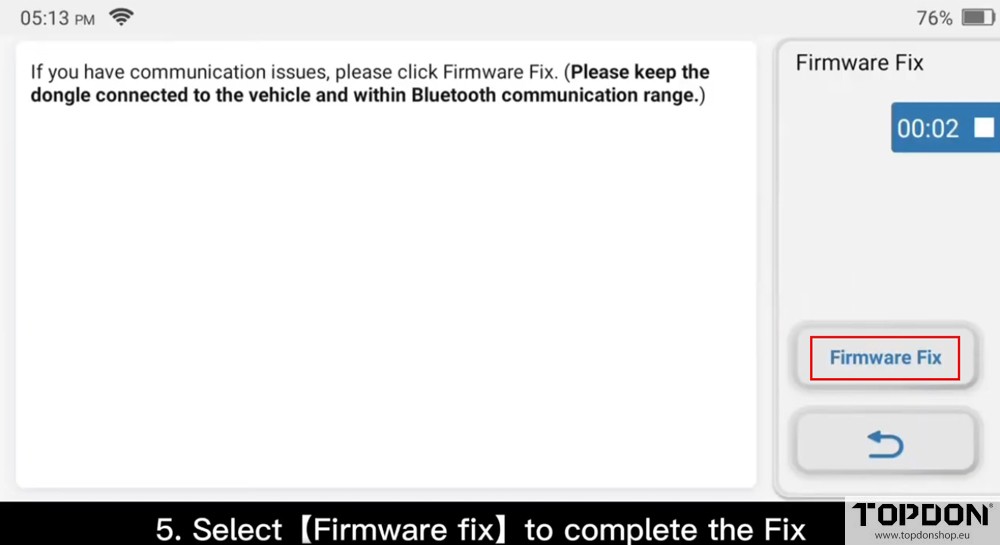
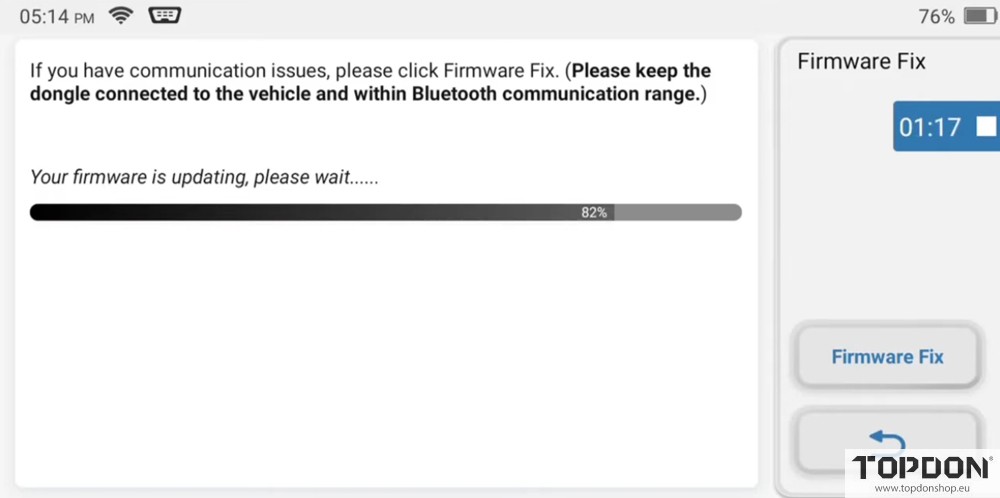
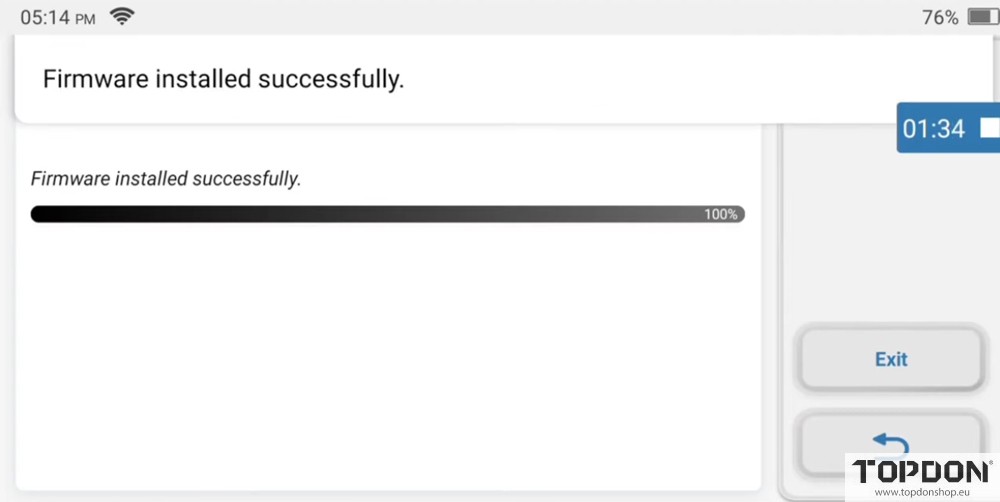
After the Fix is completed, disconnect the VCI connection and wait for more than 5 seconds before the next scanning.
If the problem still exists, take a video containing:
- Connect the VCI to vehicle via OBD.
- Turn the ignition on to start car
- Do the Firmware Fix procedure.
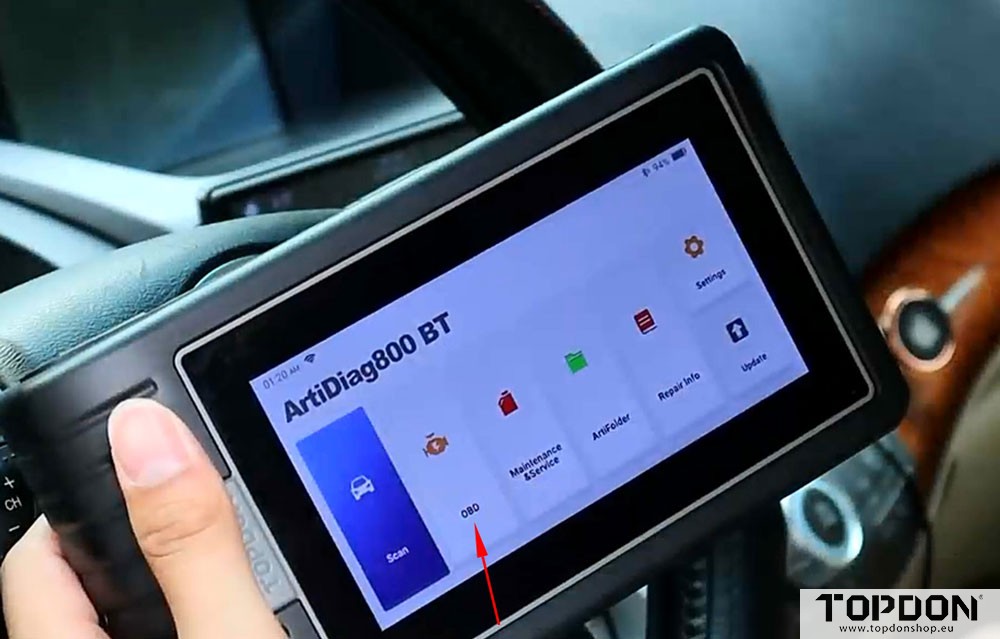
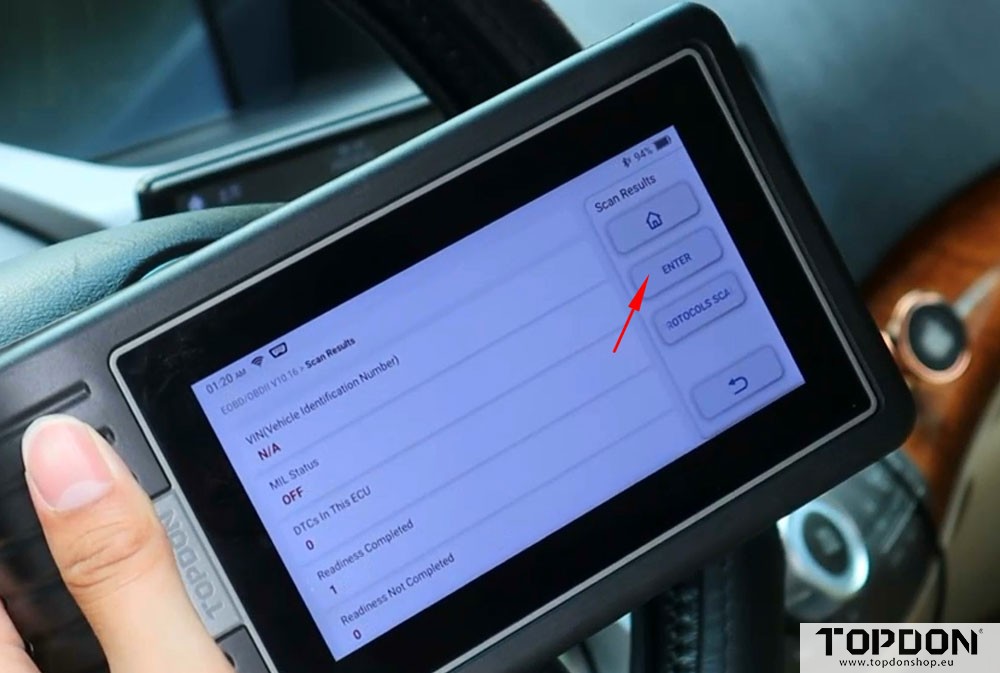
- Do an OBD scan.
TOPDON will analyze the video footage and give you a solution.