
Tutorial: How to set up and connect Topdon Rlink X3 J2534 adapter with Ford OEM software (FDRS and FJDS).
Tips: You need to install the Ford OEM software before use. If it’s not installed yet, you can download and install it from the official Ford website.
https://www.fordserviceinfo.com/
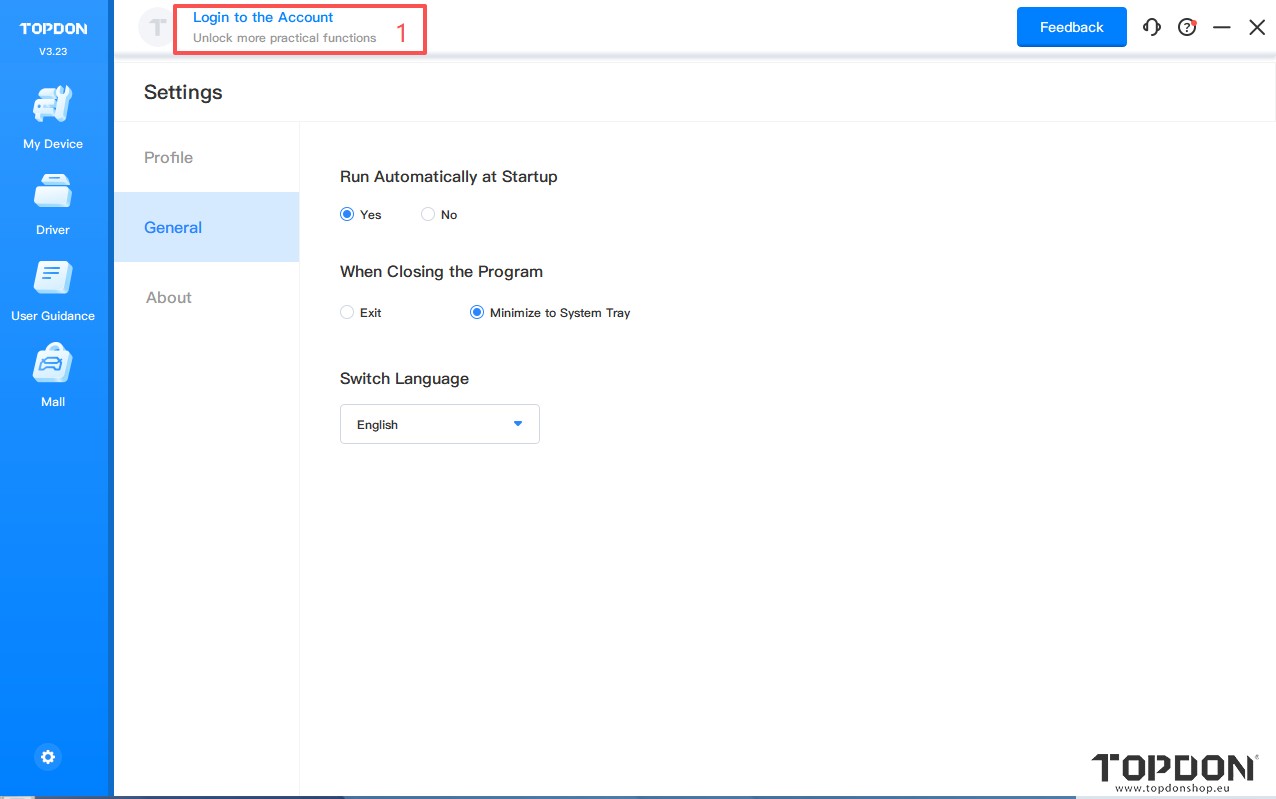
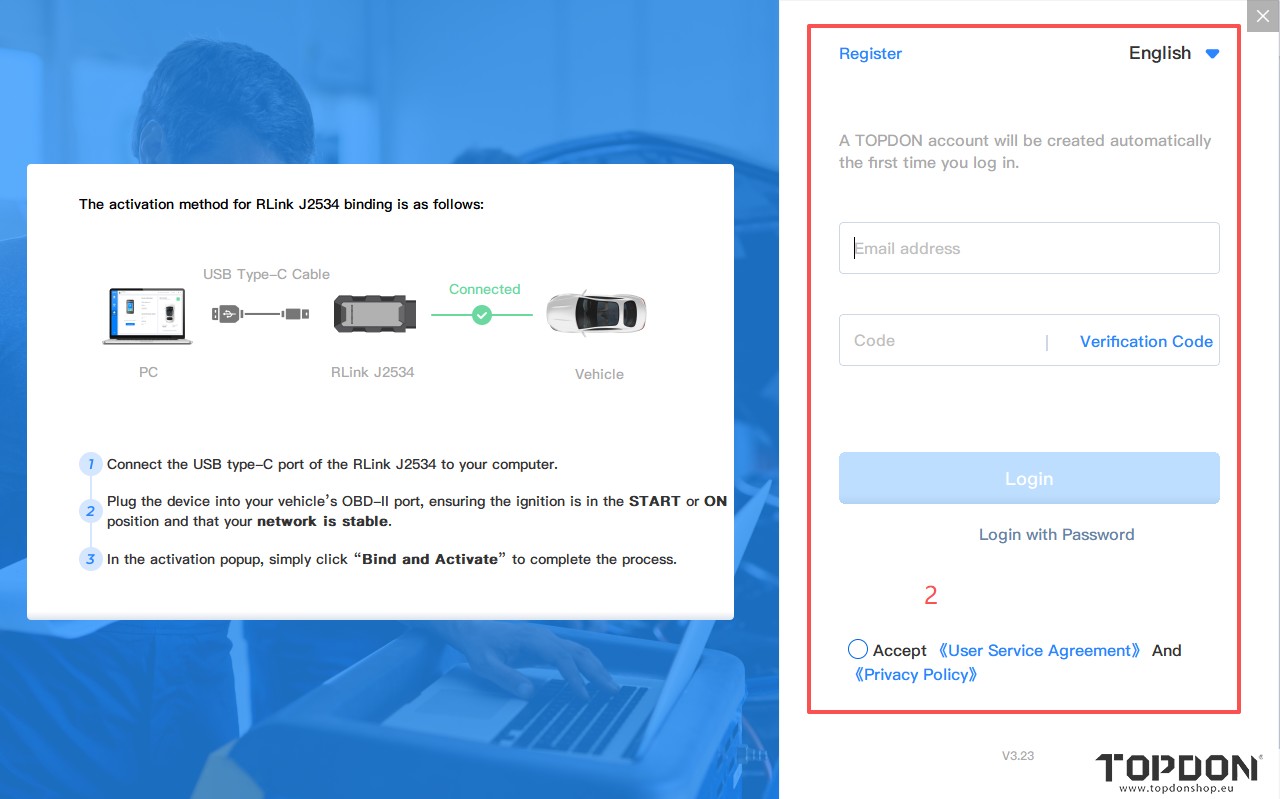
1. Open the RLink Platform. Clicking “Login to the Account” will automatically redirect you to the login page. Log in to the account bound to the RLink X3 device.
Note: After binding and activating the device and downloading the driver, you can use the RLink X3 device to perform vehicle diagnostics without opening the RLink Platform later.
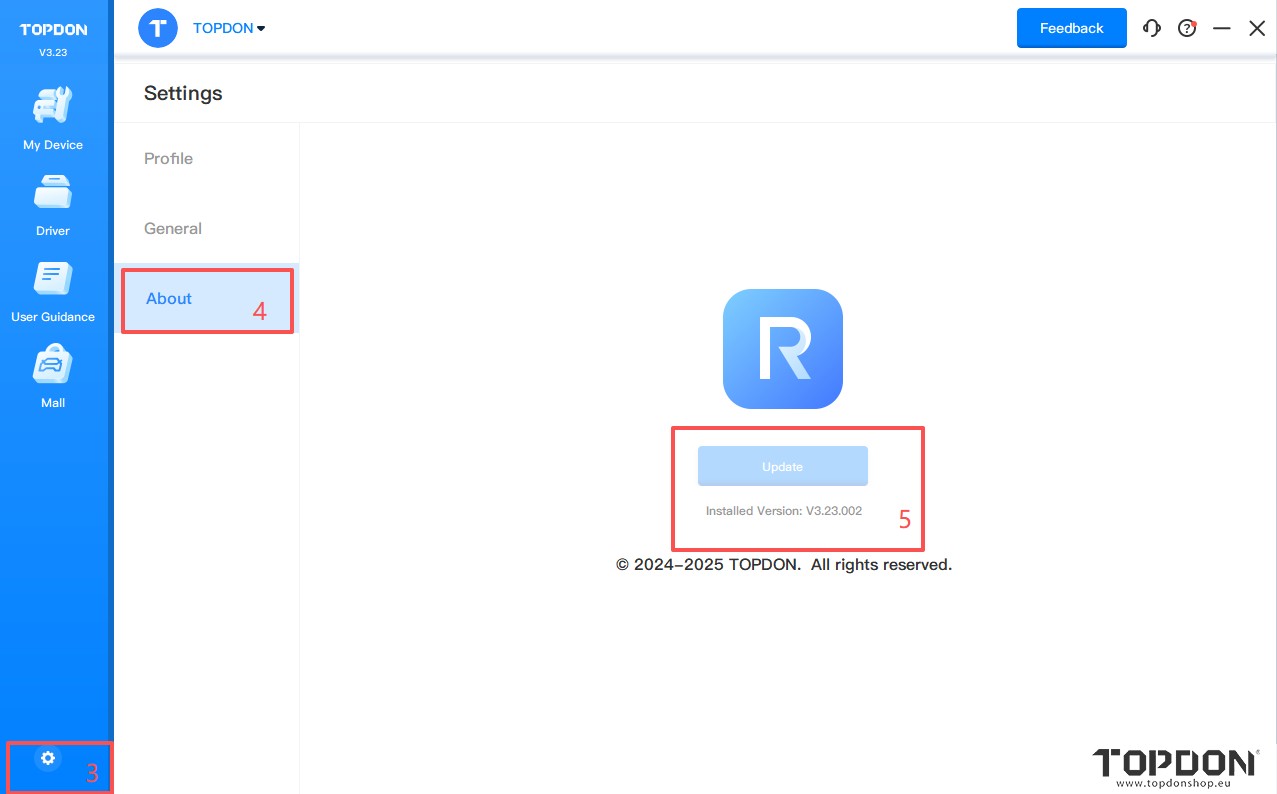
2. Click the settings icon. Then click About to check whether there is an update for the RLink Platform. If yes, click Update.
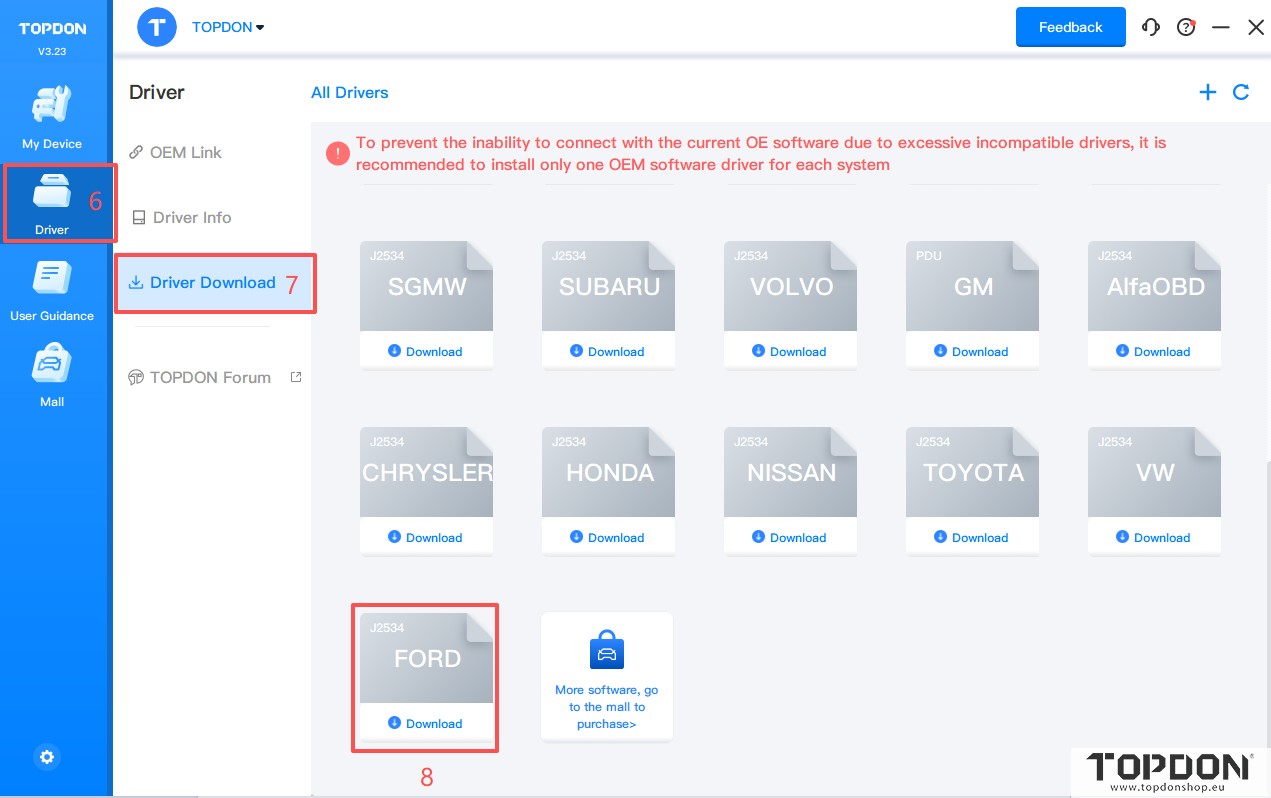
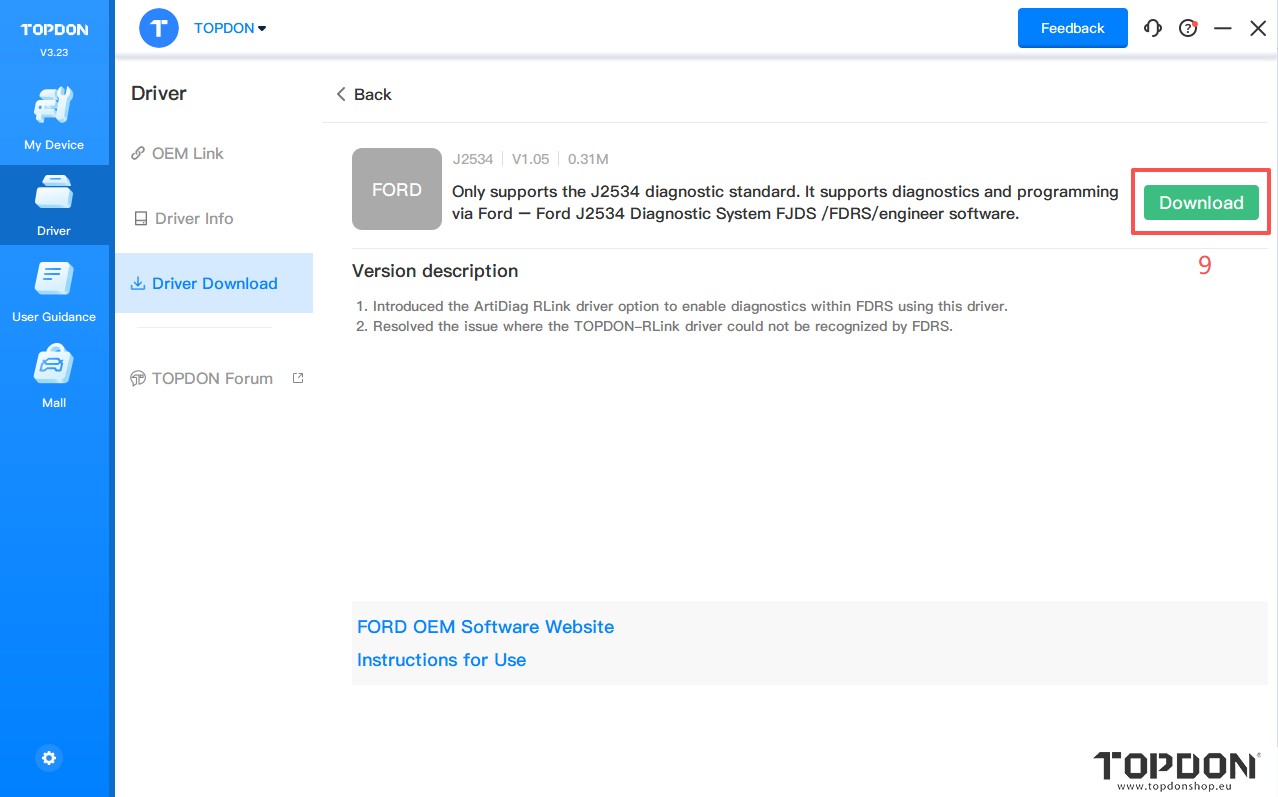
3. Click Driver > Driver Download. Click FORD and click Download to download the driver.
Note: Download the corresponding driver according to the OEM software. Do not download drivers that are not related to the OEM software.
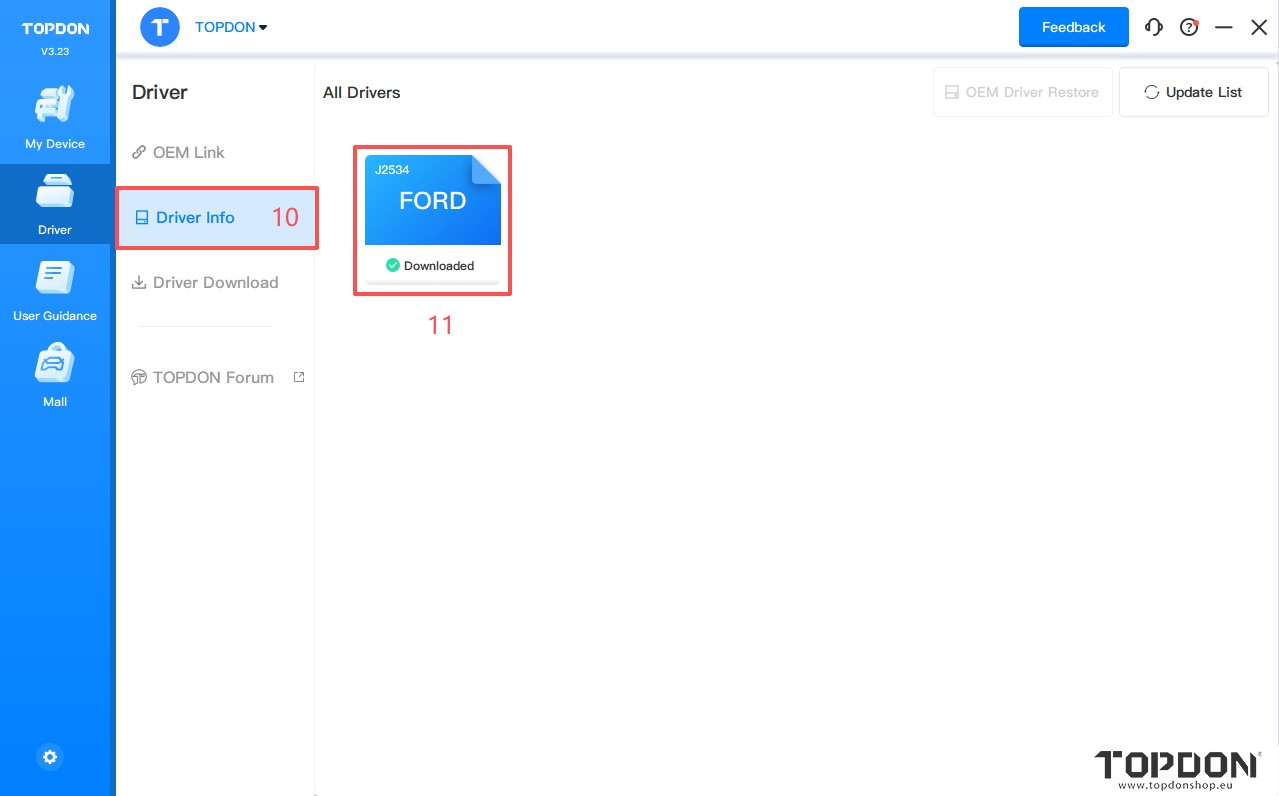
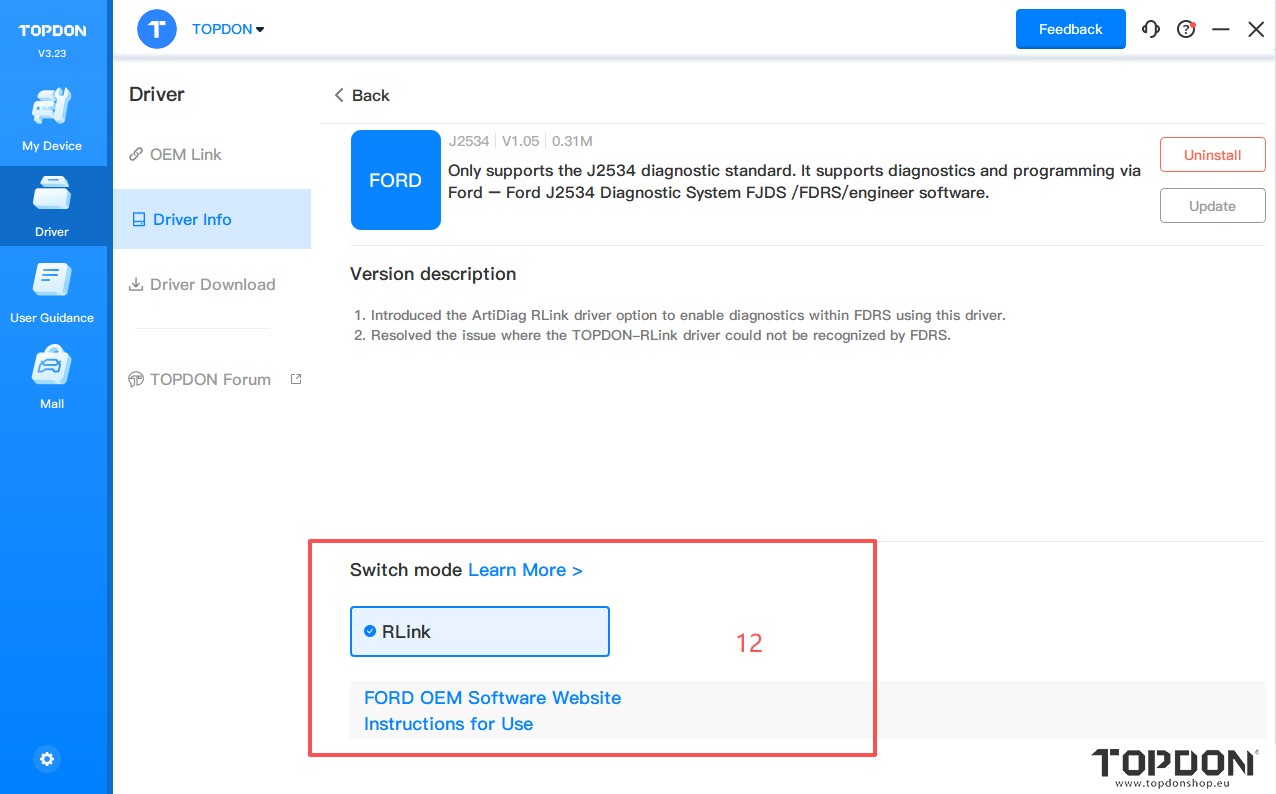
4. Click Driver > Drive Info. Then click FORD to configure the driver mode.
5. When using RLink X3 devices, select RLink as the diagnostic interface on the OEM software. If you are connecting to the original VCI or third-party VCI, open the OEM software and select the original VCI or third-party VCI as the diagnostic interface. This driver will not have any impact.
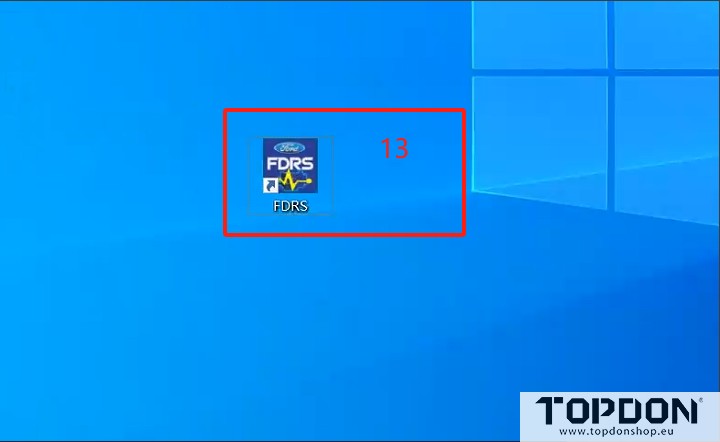
6. Double click the icon to open the FDRS.
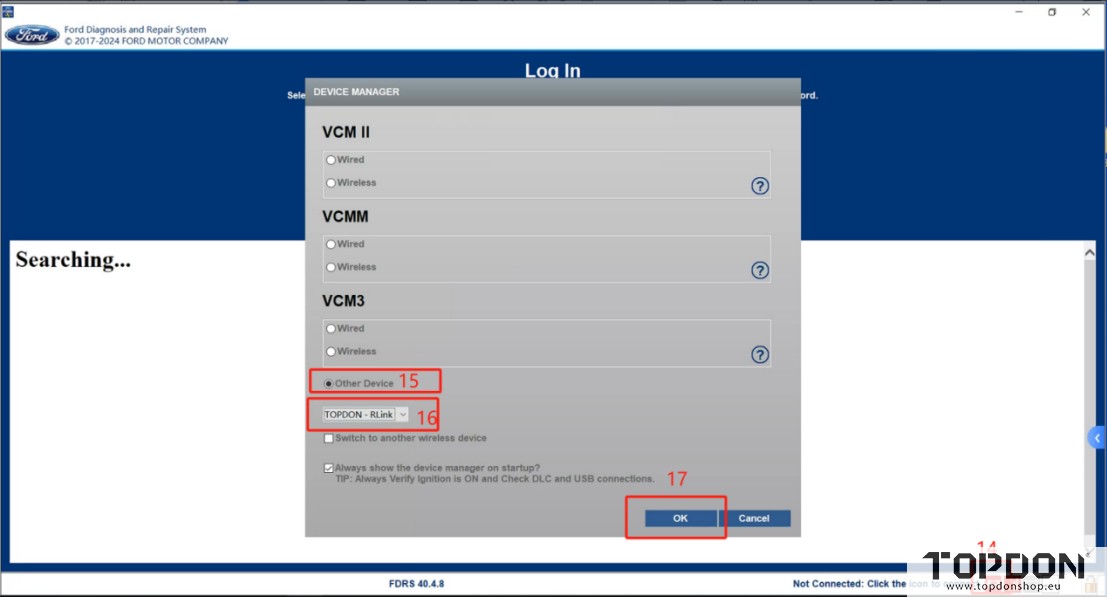
7. Click the icon on the lower right corner. Click Other Device and choose RLink. Then click OK to continue.
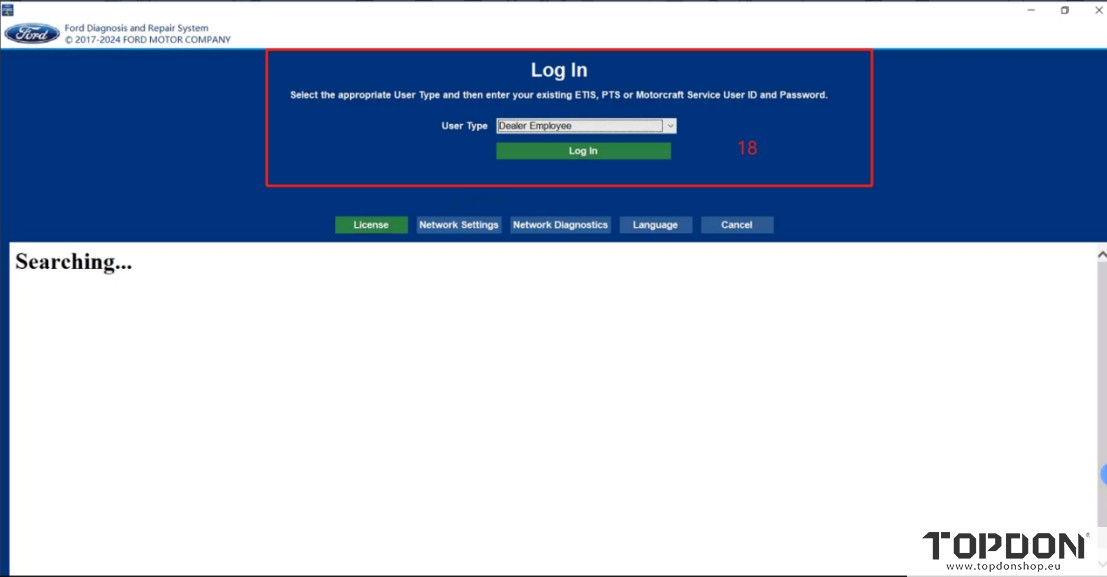
8. Log in to the FDRS diagnostic account to perform diagnostic programming.
Part 2: Instructions for using FJDS in conjunction with RLink X3
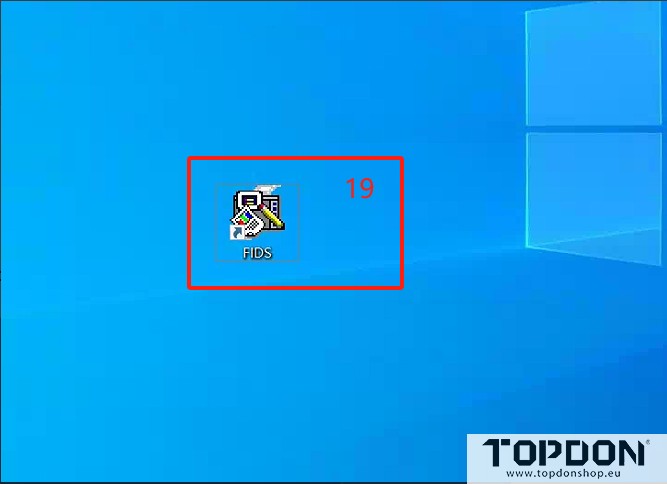
1.After the driver download is completed, open the FJDS for diagnosis.
2.Check the device driver on the FJDS.
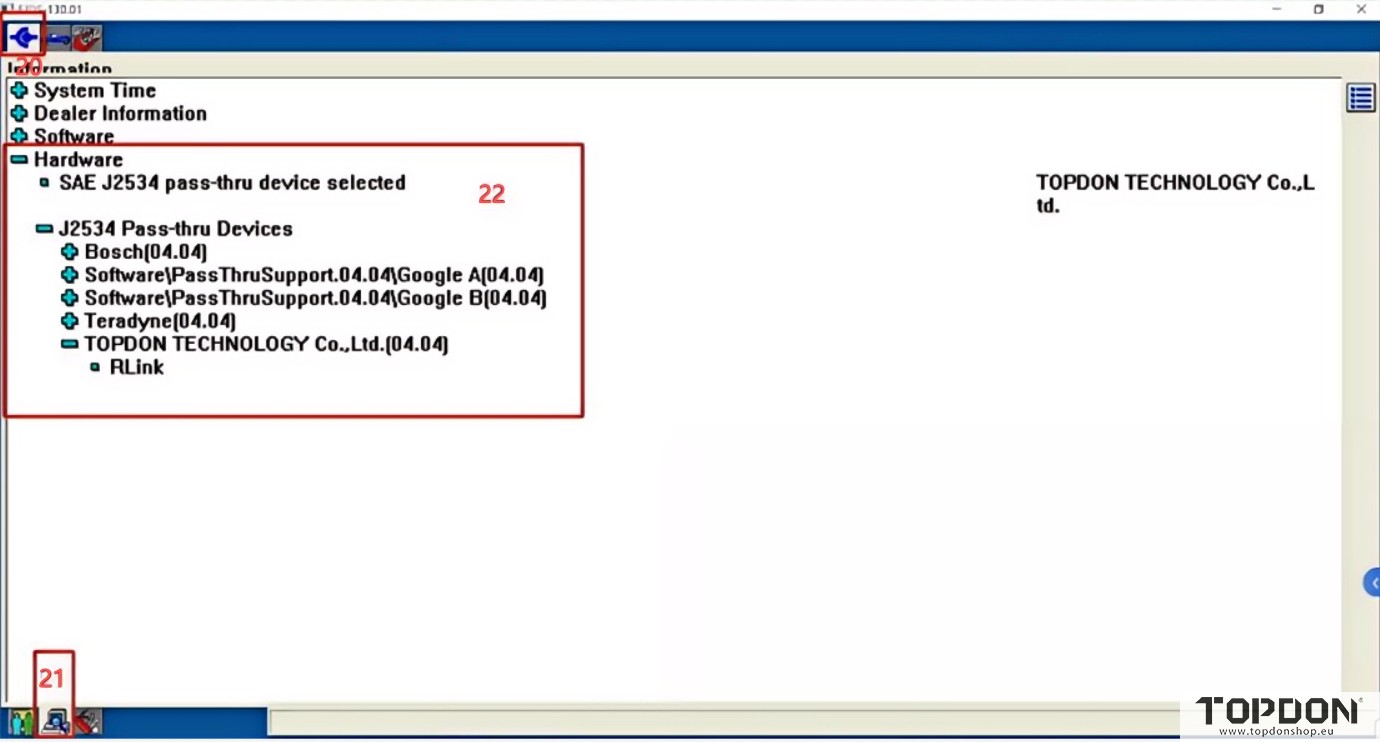
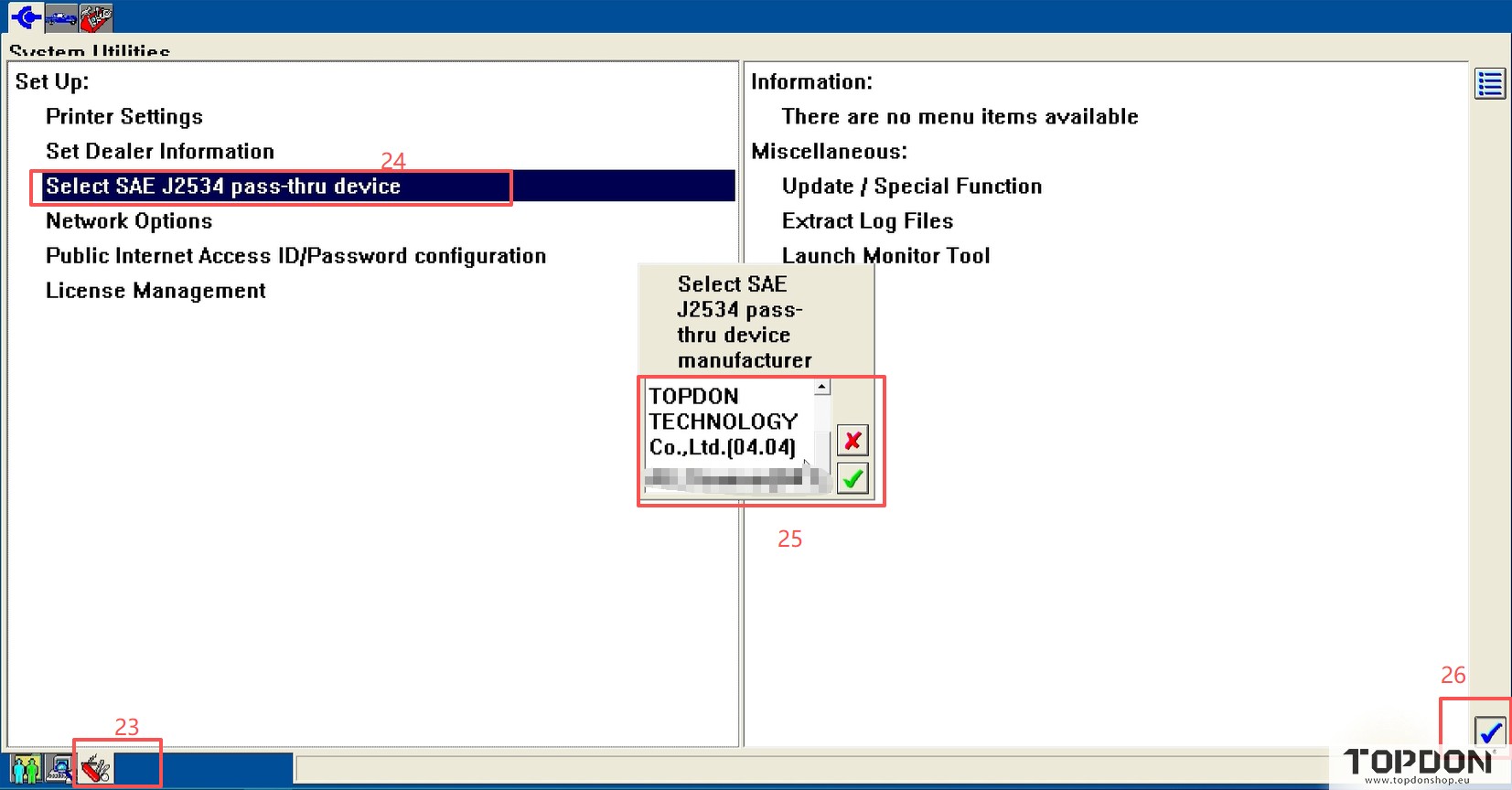
3.Follow the orders in the figure below to select the device.
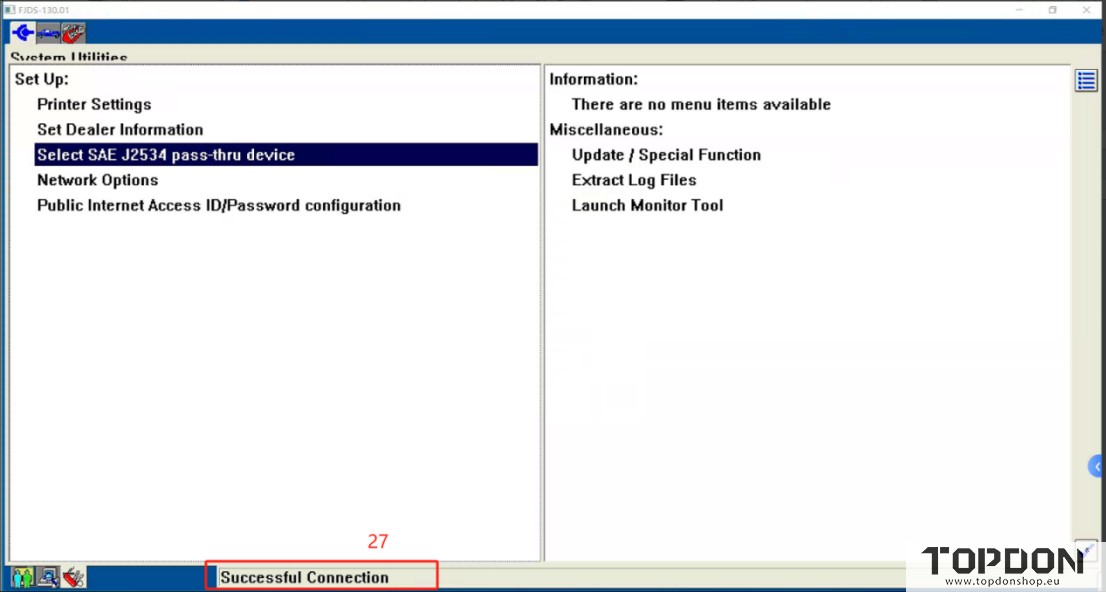
4.When the connection is successful, a successful connection message will be displayed.
5.Select vehicle for diagnostics after successful connection.
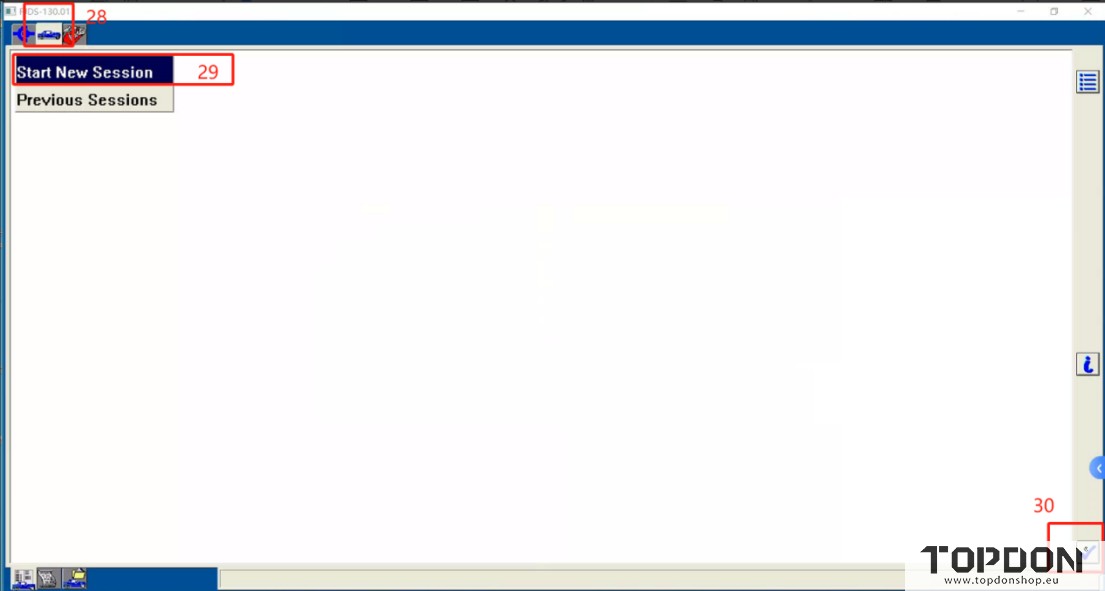
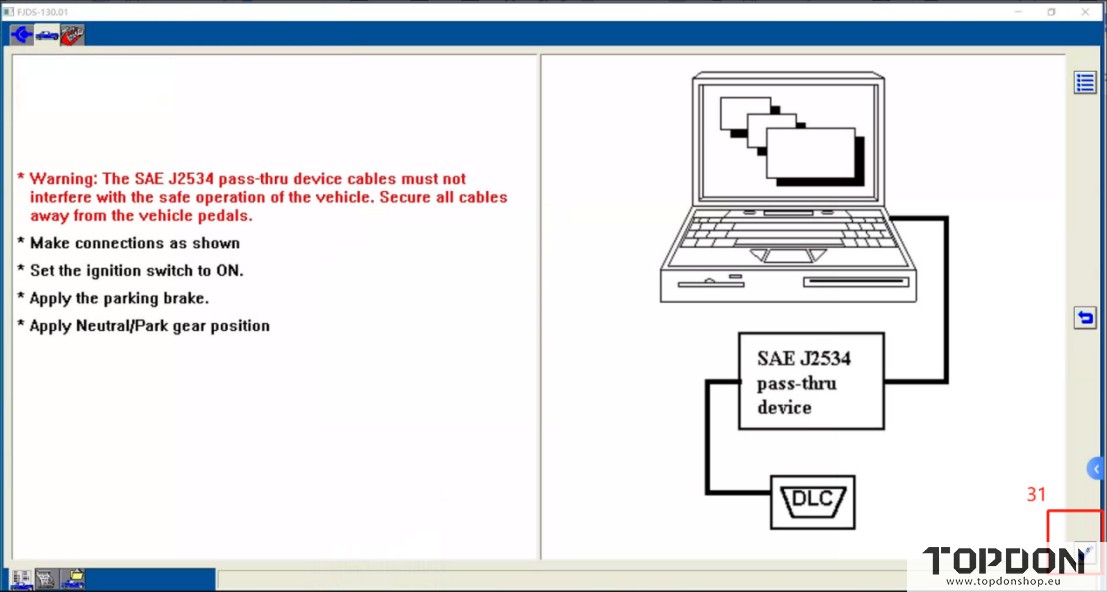
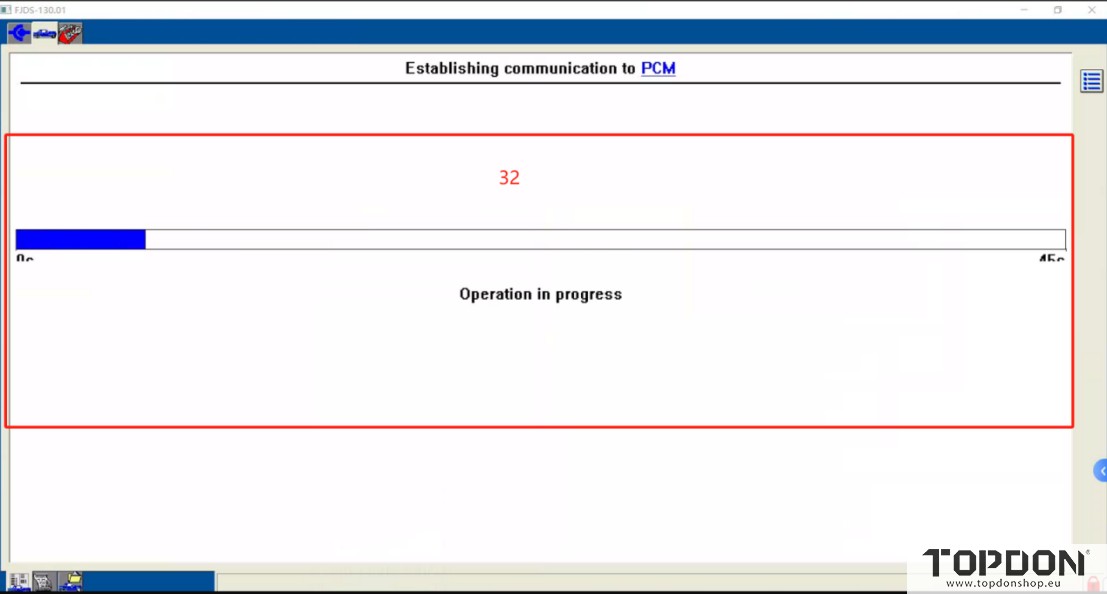
6.The system will detect the vehicle automatically.
Read also:
How to Connect Topdon Rlink X3 with Chrysler OEM Software wiTech 2.0?
How to Connect Topdon Rlink X3 with GM OEM Software (Techline Connect)?