



Tutorial: How to reflash Topdon Phoenix Plus 2 diagnostic scanner tablet firmware.
The guide can also apply to Topdon tablets of 12 inches and below (Phoenix Plus, Lite 2/3, Phoenix Elite etc).
When do you need to reflash firmware?
For example, when the device repeatedly restarts on its own.
Please do not flash the device yourself—report the issue to TOPDON first and wait for confirmation that flashing is required before proceeding.
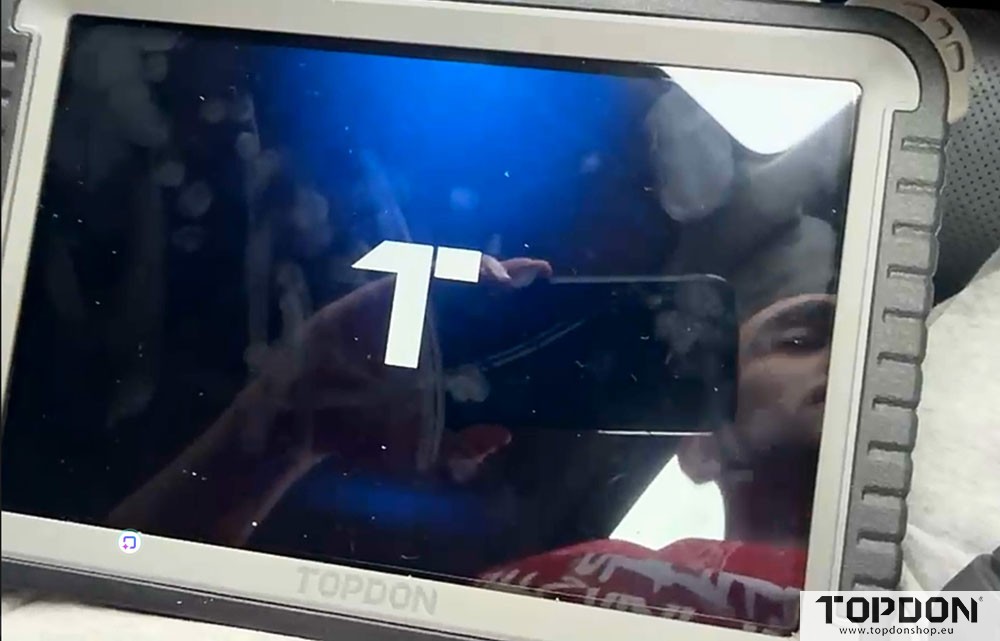
How to reflash firmware?
Preparation:
Contact your seller to get the Phoenix firmware reflash file (Driver_Auto_Installer zip file).
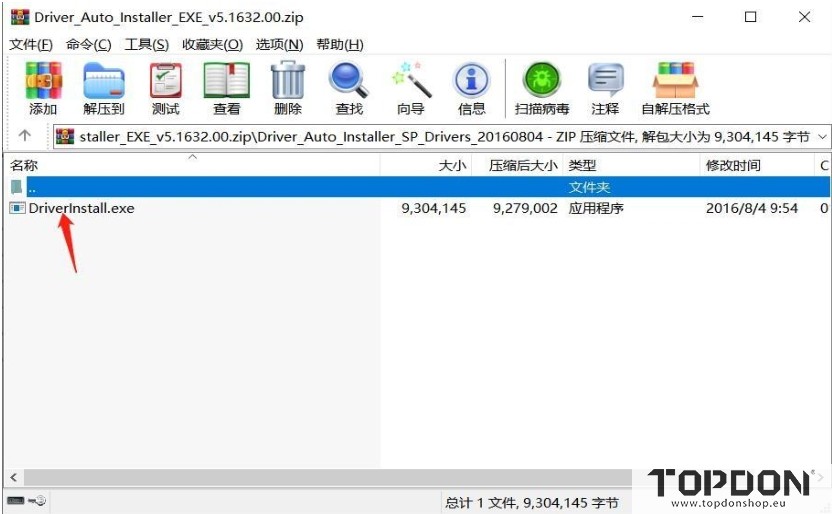
1. Unzip the “Driver_Auto_Installer” file on a Windows PC, and then click“DriverInstall.exe” to run the driver.
2. Flash.
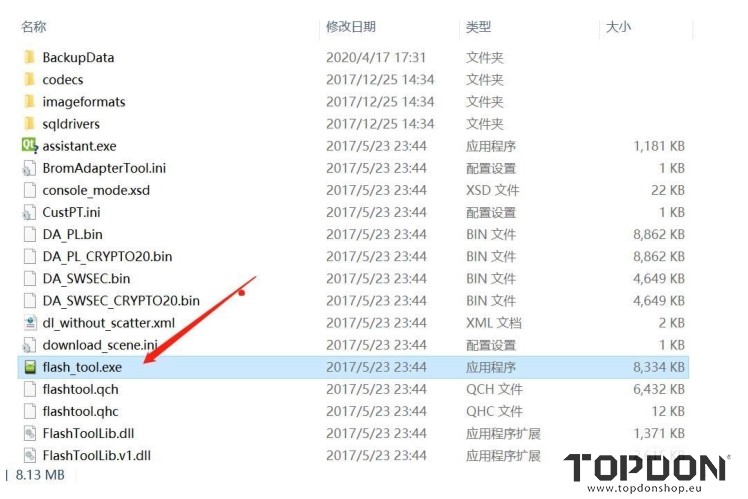
1) Unzip “flash_tool” file on a Windows PC, then double click to open the file“flash_tool.exe”.
3. Unzip the “System” file & Downloading
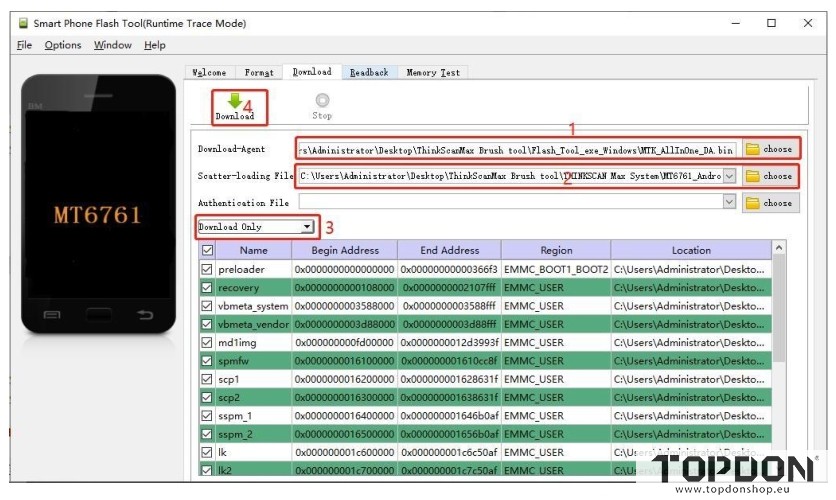
1) Step 1: Click “choose” to select “MTK_AllInOne_DA.bin” file in the unzipped “SP_Flash_Tool” folder if it’s not automatically selected.
2) Step 2: Choose “xxx_Android_scatter.txt” file from the unzipped folder “System”.
3) Step 3: Select “Download Only”.
4) Step 4: Click “Download”.
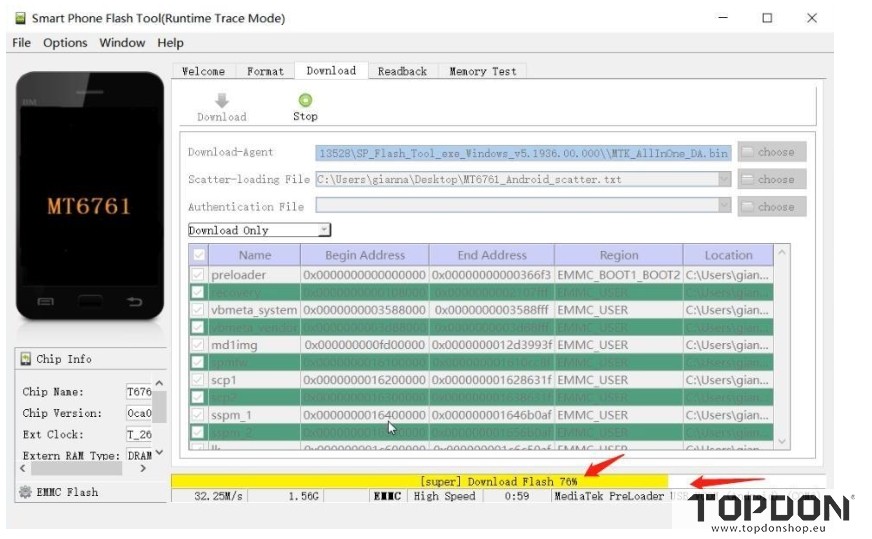
4. Turn off the device and connect it to the PC with a Type-C cable, the download process is displaying on the bottom.
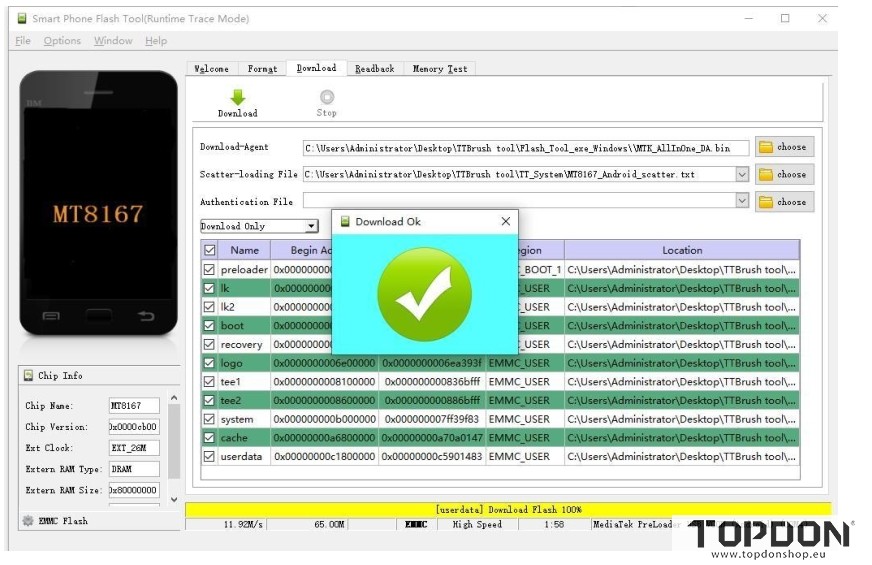
5. It shows “Download Ok” when it’s finished.
6. Finally, unplug the USB cable and restart the device to use.