
How to set up and connect Topdon RLink J2534/ Rlink X7/ Rlink Lite/ ONE VCI adapter with Volvo OEM software VIDA?
Tips:You need to install the VOLVO OEM software before use. If it’s not installed yet, you can download and install it from the official VOLVO website.
https://www.volvotechinfo.com/
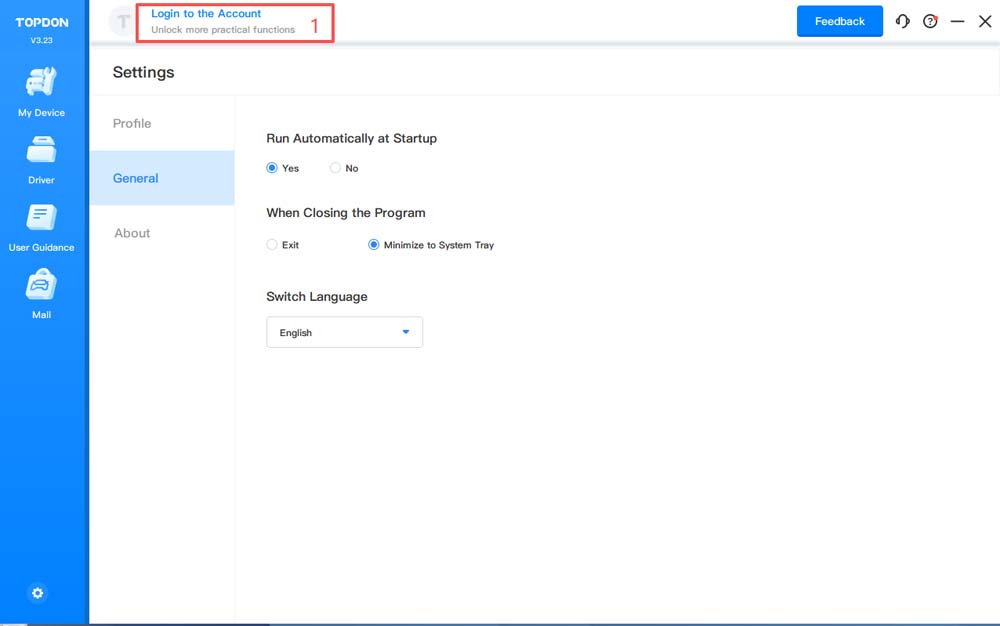
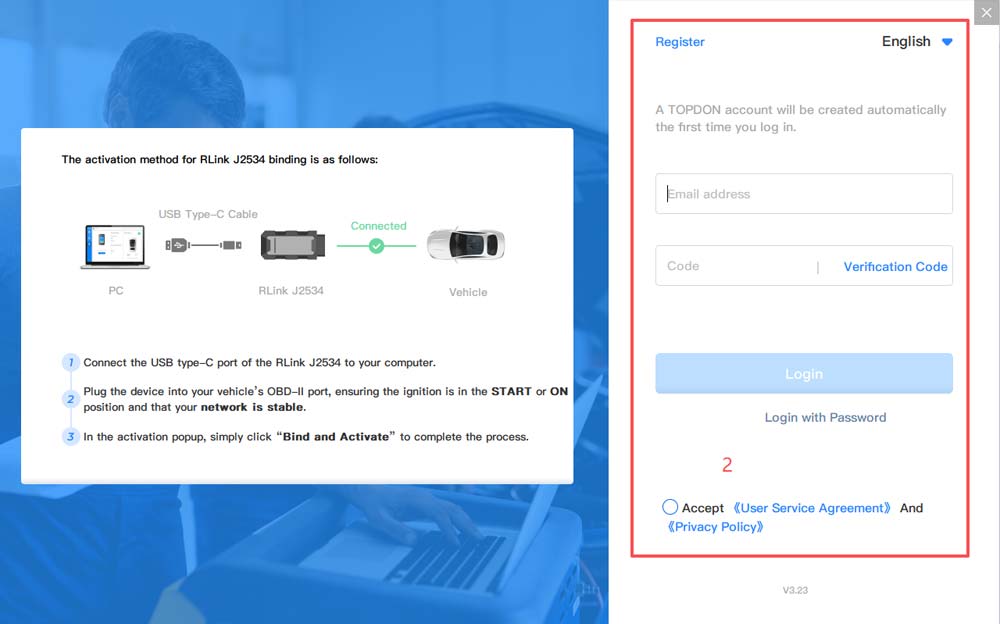
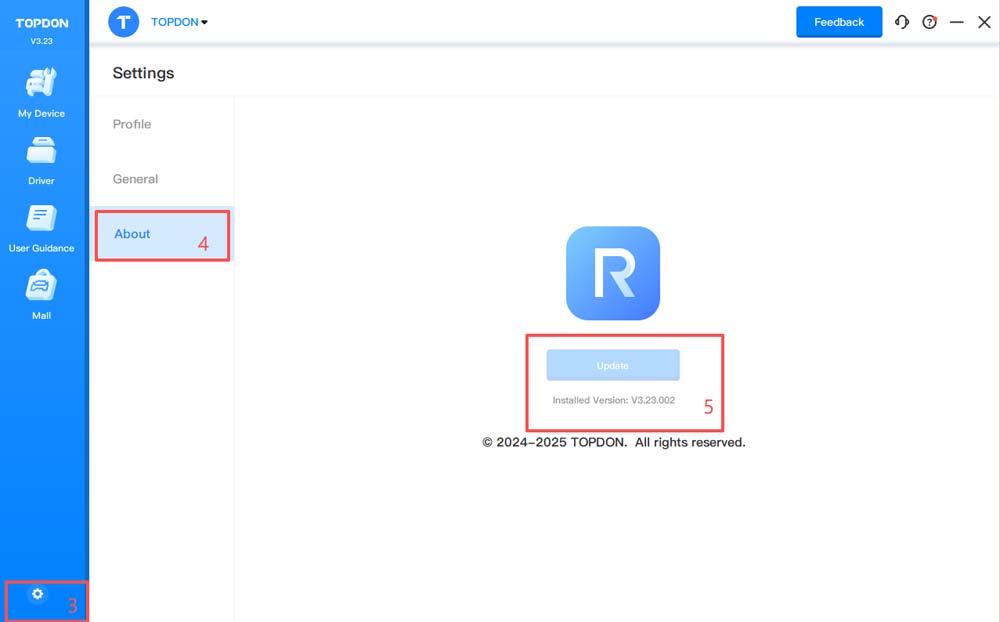
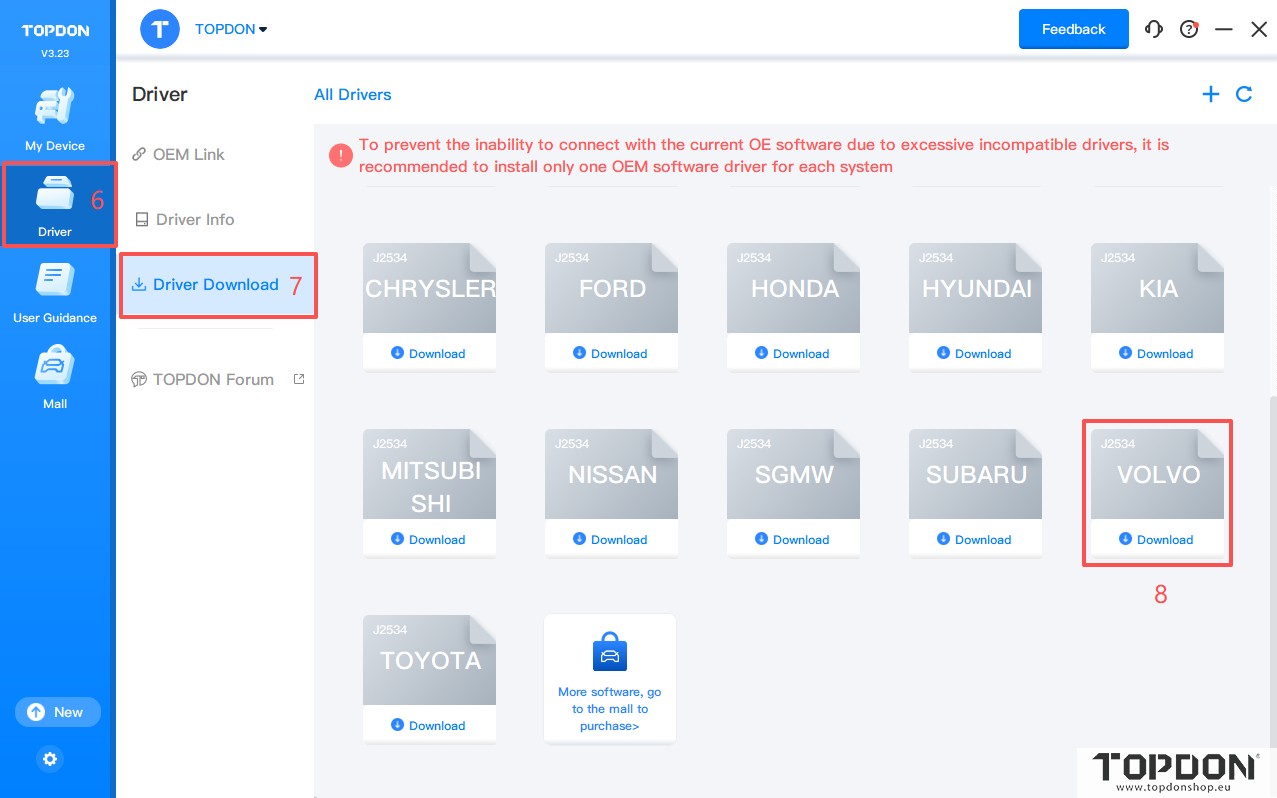
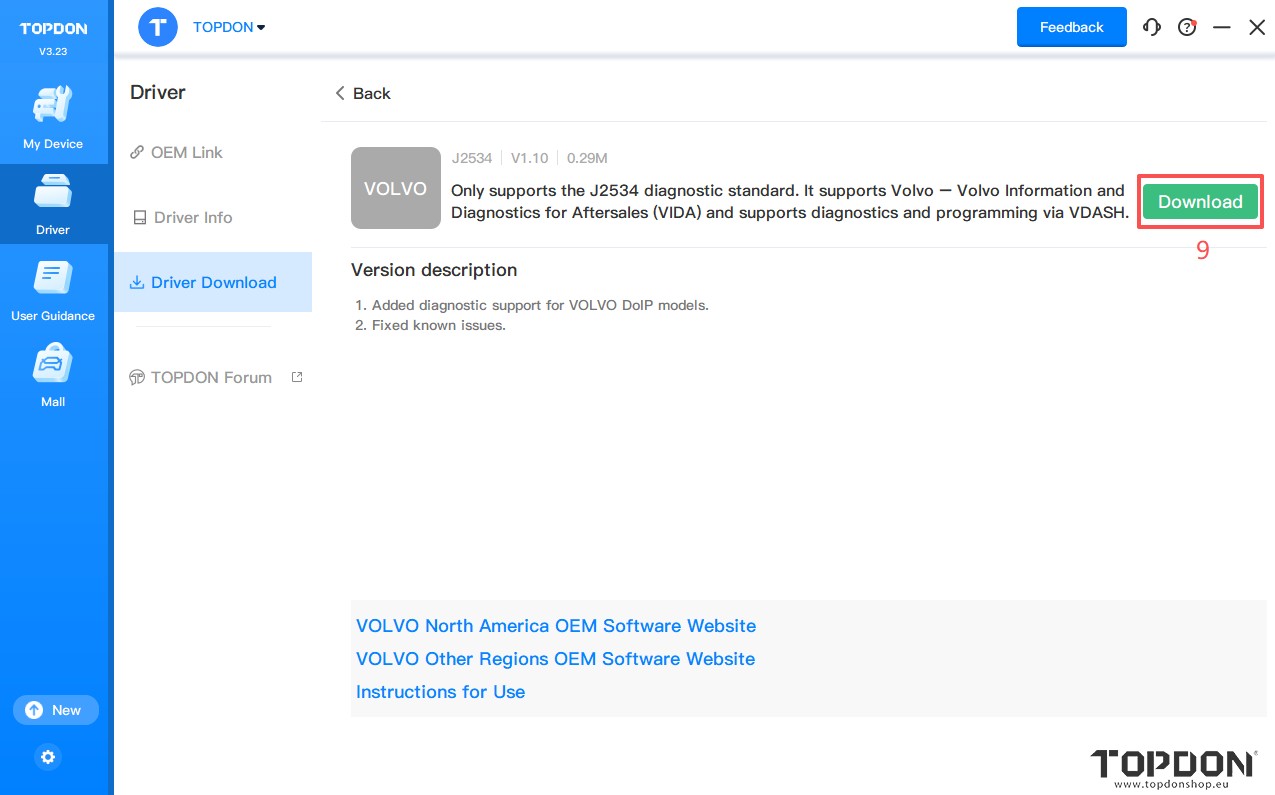
3. Click Driver> Driver Download. Click VOLVO and click Download to download the driver.
Note: Download the corresponding driver according to the OEM software. Do not download drivers that are not related to the OEM software
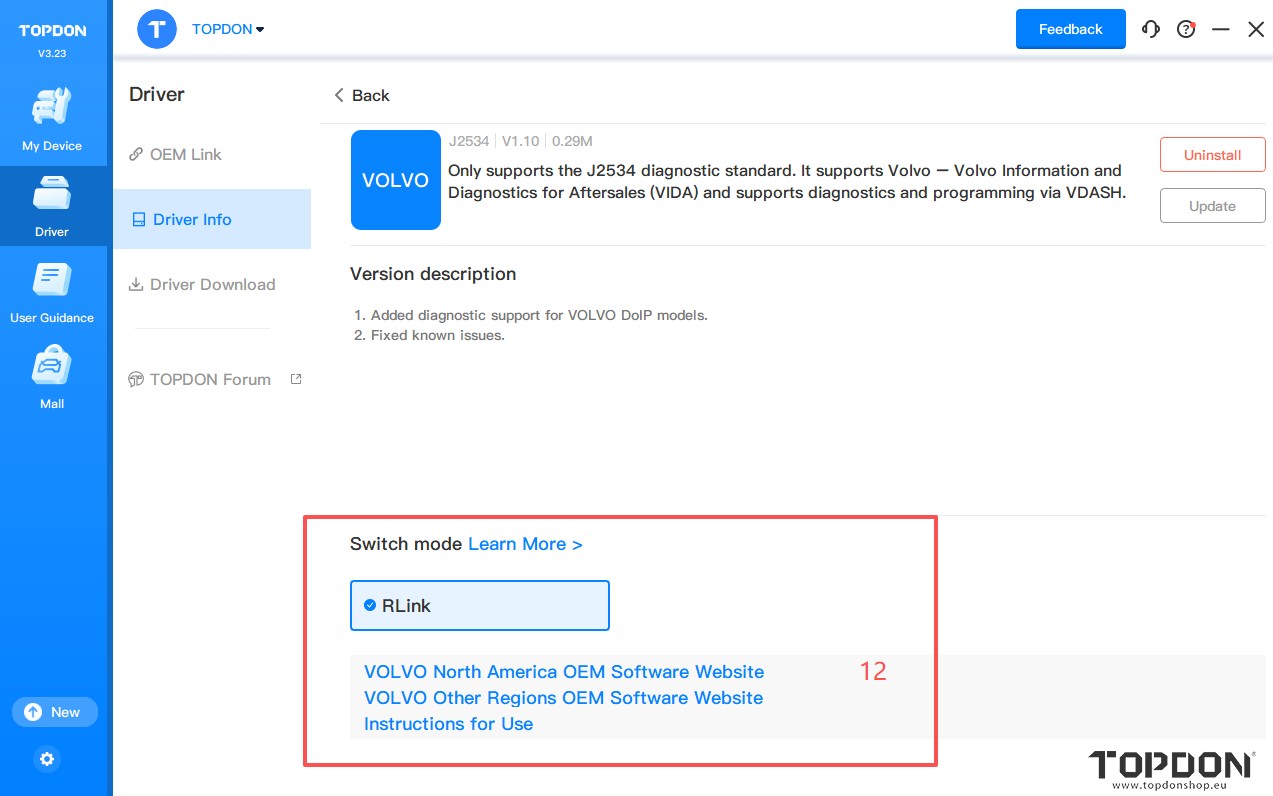
4. Click Driver > Driver Info. Then click VOLVOto check the driver mode.
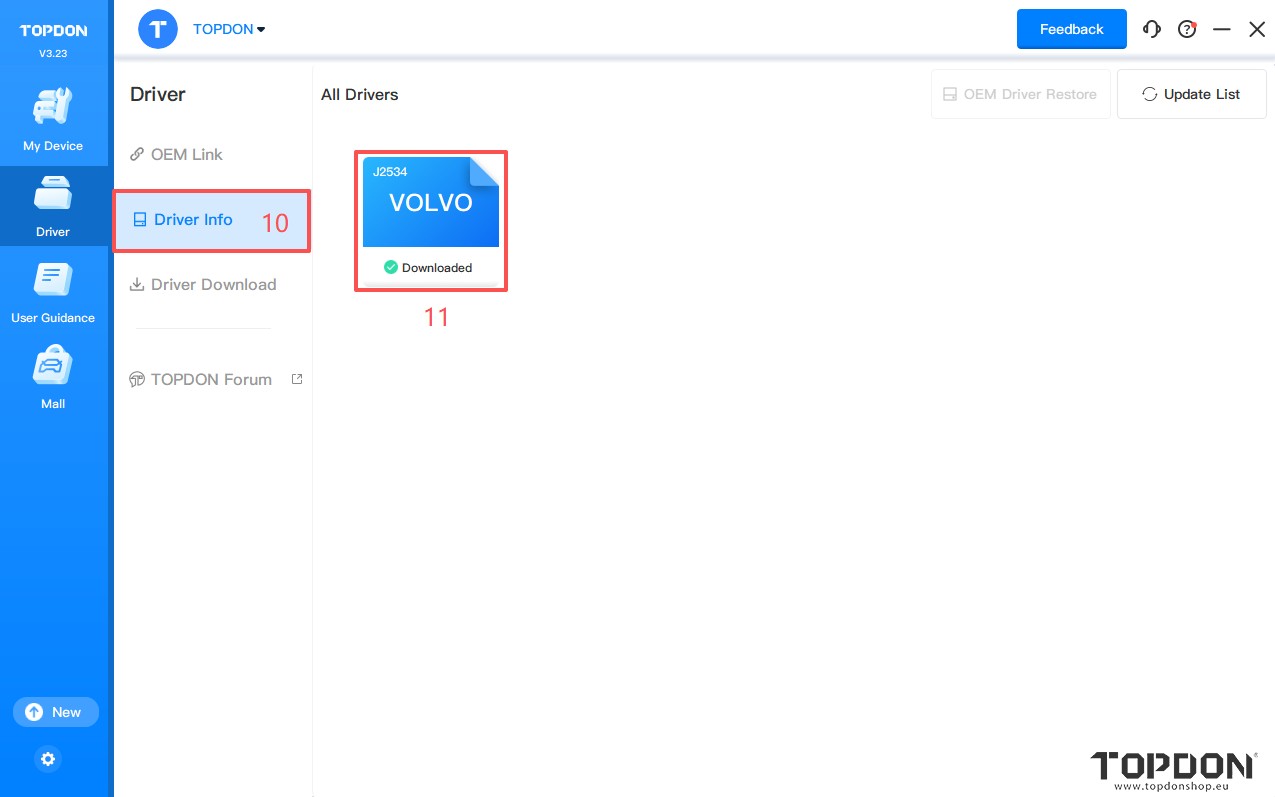
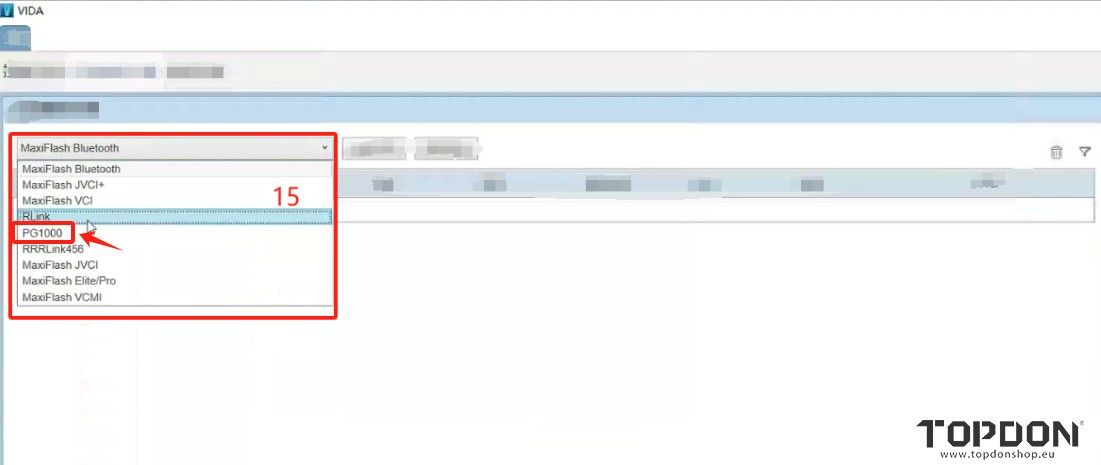
5. When using RLink devices, select RLink as the diagnostic interface on the OEM software. If you are connecting to the original VCI or third-party VCI, open the OEM software and select the original VCI or third-party VCI as the diagnostic interface. This driver will not have any impact.
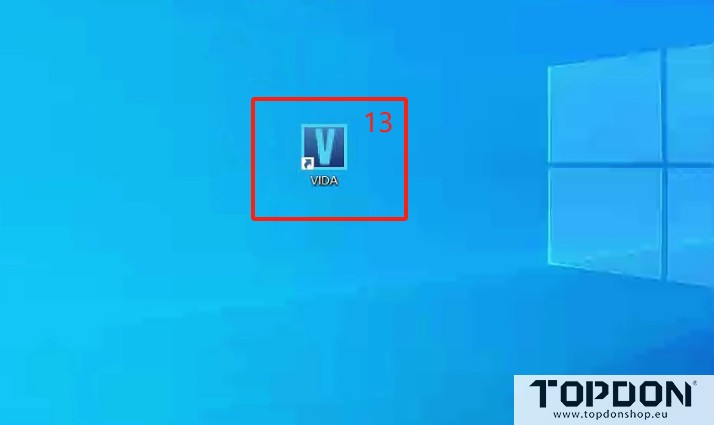
6. Double click the icon to open the VIDA.
7. Log in to the VIDA account registered on the VOLVO official website.
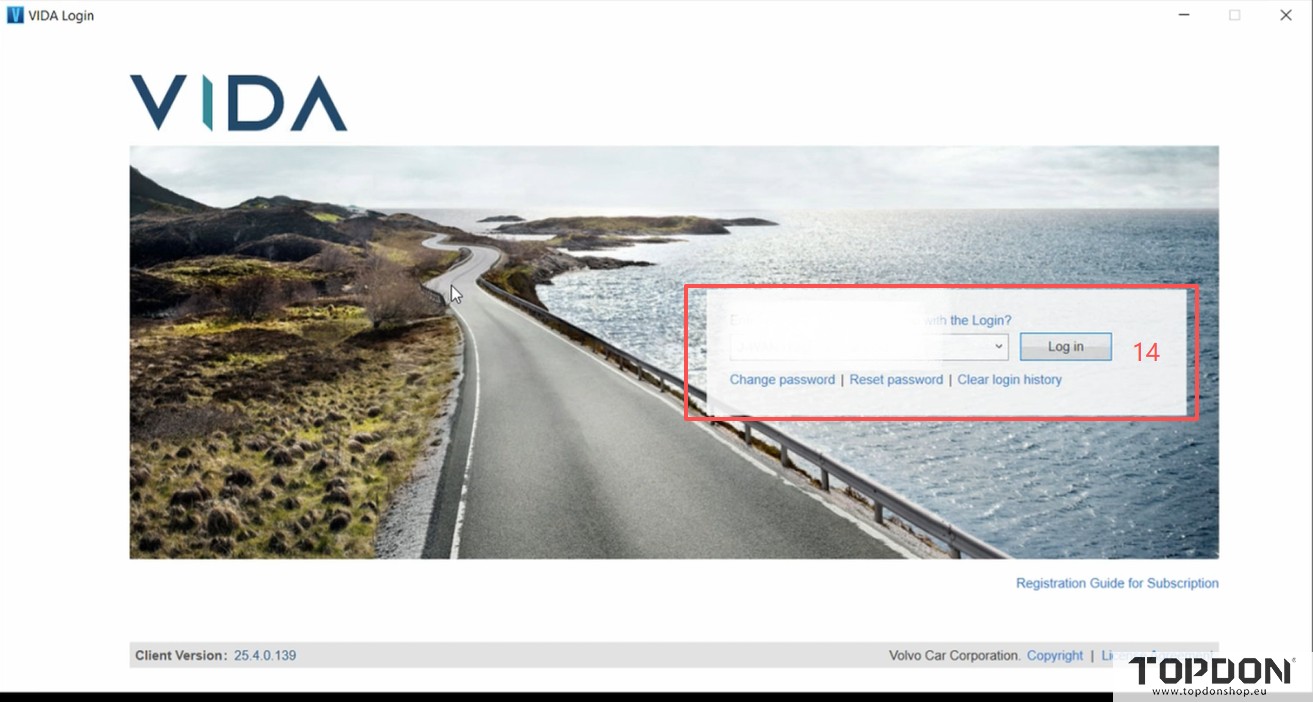
8. Choose PG1000 mode from the drop-down list to start vehicle diagnostics.